
Compress PDF Online Without Losing Quality - Fast & Free | DoxBar
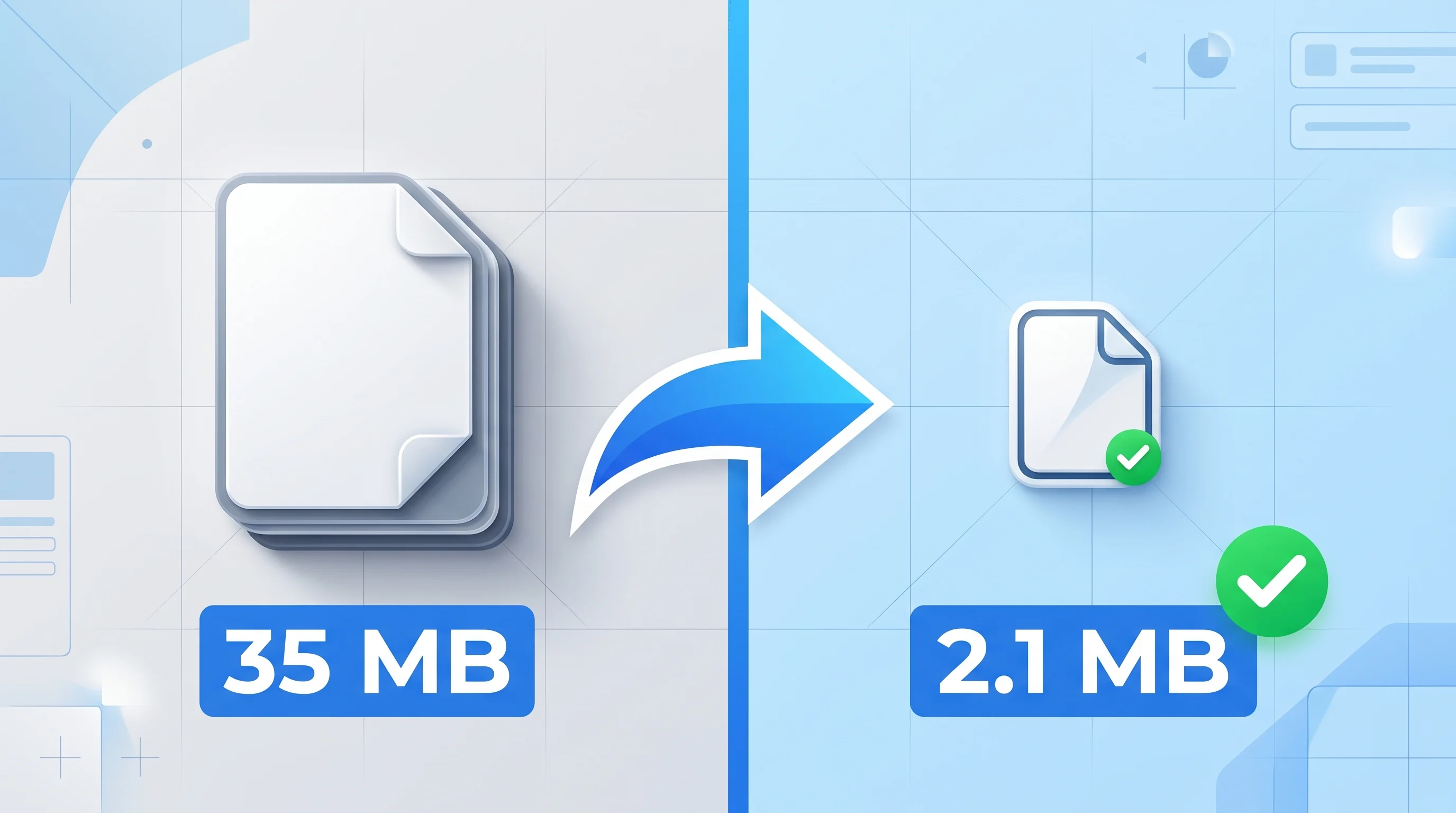
Imagine spending three days perfecting a comprehensive project proposal, complete with high-resolution charts, client case studies, and crisp typography. It looks beautiful. But when you finally go to upload it to a vendor portal or attach it to a critical email, everything grinds to a halt. A red warning banner pops up: “File size exceeds the 25MB limit.”
Suddenly, you are stuck trying to figure out how to shrink a document without making your embedded charts look like pixelated Lego bricks. It is a frustrating, familiar bottleneck that interrupts remote teams, freelancers, and students every single day.
While squeezing a file down is easy, doing it while keeping your text sharp and your graphics professional requires understanding how document data actually works. That is exactly why we built Doxbar - to handle these friction points quietly in your browser without the typical headaches.
Compress Your PDF Instantly
Reduce PDF file size online without losing quality using Doxbar’s fast, secure, and browser-based PDF compression tool. Upload your file, optimize it instantly, and keep your layouts, fonts, and images clear.
✔ No signup required
✔ Secure browser-based processing
✔ No watermark added
✔ Free PDF compression
✔ Works on mobile, tablet, and desktop
✔ Maintains document quality
[ Compress PDF Now ]
Compress large PDFs in seconds — without blurry images or broken formatting.
Why PDF Compression Gets Complicated
A PDF is not just a single file. It is a layered container that combines multiple types of data:
What Exists Inside a PDF?
PDF Component
Purpose
Impact on File Size
Vector Graphics
Logos, icons, diagrams
Lightweight and scalable
Embedded Fonts
Keeps formatting consistent across devices
Moderate file weight
Raster Images
Photos, scanned pages, screenshots
Largest contributor to heavy PDFs
Because of this structure, reducing a PDF’s size is not as simple as “zipping” a file.
Modern compression tools must intelligently optimize images, fonts, metadata, and rendering layers without damaging the overall document quality.
Common Problems With Poor Compression Tools
Aggressive Image DownsamplingMany basic compressors heavily reduce image resolution to save space. The result is blurry screenshots, pixelated charts, and low-quality visuals.
Font Stripping & Layout BreakageSome tools remove embedded fonts to reduce file size. When the PDF opens on another device, font substitutions can break spacing, alignment, and page formatting.
Slow Processing on Large FilesTraditional desktop compressors often consume excessive system memory during optimization, especially when processing scanned or image-heavy documents.
Privacy & Security ConcernsMany free online tools upload files to third-party cloud servers without transparent retention policies, which creates unnecessary risks for sensitive legal or financial documents.
The Mechanics: What Happens Behind the Screen
To shrink a document without destroying its integrity, it helps to understand what a compressor actually does under the hood.
Compress PDF Without Losing Quality: Lossy vs. Lossless Compression
File compression generally falls into two buckets. Lossless compression removes redundant data patterns without altering a single pixel of the original document. It is safe but offers modest file size reductions. Lossy compression permanently discards unnecessary or imperceptible visual data—like minor color gradients in an image—to achieve massive size reductions. The trick is balancing the two so the human eye cannot spot the difference.
Image Resampling & Color Space Optimization
Images are almost always the culprit behind massive PDFs. According to Adobe's developer guidelines, a standard print-ready document often uses 300 DPI (dots per inch). For digital screens, 72-150 DPI is more than enough. Smart compressors downsample these images and optimize the color spaces (converting heavy CMYK print colors to lighter web-friendly RGB profiles).
Cleaning Up Internal Garbage
PDFs accumulate digital lint over time. Every time a document is edited, saved, or appended in programs like Microsoft Word or Acrobat tools, metadata, hidden objects, and unmapped piece dictionaries pile up. A modern optimization engine parses the structural tree of the file, deletes these orphaned elements, and applies flat compression to the underlying text streams.
The Modern Solution Framework: What to Look For
You do not need to be a technical expert to compress files efficiently, but you should use tools that respect your data and your time. If you are evaluating a document utility, use this checklist:
True Browser-Native Execution: Look for tools that process files locally via WebAssembly or modern browser APIs rather than sending your sensitive documents to a vulnerable cloud queue.
Intelligent Layout Preservation: The software must preserve vector lines, signatures, form fields, and text layers while only compressing heavy raster objects.
Transparent Security Posture: High-quality tools clearly state their data retention terms. Ideally, files should never sit on an external server. You can review best practices for secure web applications via Cloudflare.
Zero Software Footprint: Desktop installations are increasingly a thing of the past. Your workflow should be as simple as opening a tab on a phone, laptop, or tablet.
How Different Workflows Stack Up
Feature / Capability
Legacy Online Web Tools
Desktop Software Applications
Modern Browser-Based (Doxbar)
Processing Location
Remote cloud servers
Local machine storage/ RAM
Secure browser environment
Privacy & Security
Variable; often tracks data
High, but local software risks
Exceptional; immediate disposal
Processing Speed
Dependent on network uploads
Fast, but consumes system resources
Instantaneous local execution
Formatting Accuracy
Hit-or-miss; prone to font errors
Reliable but expensive
High fidelity layout retention
Cost & Access
Free with heavy ad interruptions
Upfront license or monthly SaaS fee
Free, clean, and frictionless
Step-by-Step: The Clean Way to Compress PDF
Here is the most efficient way to optimize your documents without losing your sanity or your formatting.
Step 1: Prepare Your Document
Before uploading, ensure your file is finalized. Compressing an active draft can sometimes make later text edits slightly harder if the font subsets are modified.
Step 2: Drop it into the Tool
Open your web-based optimizer. Drag your heavy PDF directly into the designated drop zone. If you are using a tool like Doxbar, this process happens smoothly right inside your active window session.
Step 3: Run the Optimization Engine
Select your desired compression balance. For everyday emails and web uploads, standard optimization offers the best size-to-clarity ratio. Click compress and let the algorithms strip out metadata and resample heavy media layers.
Step 4: Verify and Save
Download the optimized output. Before sending it off to a client or manager, open it up and zoom in to $200\%$ on a key image or chart to confirm that everything remains completely legible.
Pros & Cons of Web-Based Compress PDF
The Benefits
Instant Accessibility: No installation, registration, or credit cards required. Works seamlessly across macOS, Windows, Linux, iOS, and Android.
Reclaims Storage: Dramatically lowers cloud storage costs in systems like Dropbox or Google Drive.
Bypasses Gatekeepers: Easily fits under strict email attachment limits and job application portal caps.
The Trade-offs
Irreversible Scale Down: Lossy compression alters image data permanently. You should always keep your original, bulky source file safe as a backup copy.
Extremely Low-Res Source Files: If your original document is already blurry or uses highly compressed images, optimization cannot magic those pixels back to life.
Advanced FAQ
1. Will compressing my PDF break its digital signatures?
It depends on the tool. Basic compressors rewrite the entire file structure, which instantly invalidates cryptographic digital signatures. Advanced platforms optimize image assets and metadata streams without altering the underlying cryptographic signed blocks.
2. What is the ideal DPI for web-optimized PDFs?
For standard screen viewing on laptops and mobile devices, 72 to 150 DPI is ideal. Anything higher than 150 DPI is generally invisible to the naked human eye on a display and simply adds wasted megabytes to your file size.
3. Why did my file size barely change after compression?
If your PDF is made up primarily of raw text and vector shapes, there is very little unneeded data to remove. Alternatively, if the file was already compressed by another program, running it through a second time yields diminishing returns.
4. Can I compress a password-protected PDF?
Most web tools cannot compress an encrypted PDF because they cannot access the internal file structure to optimize the images and objects. You will typically need to remove the password restriction first before running the compression sequence.
5. Does document compression affect PDF/A compliance?
Yes, it can. PDF/A is an ISO standard designed for long-term archiving, which requires all fonts and color spaces to be explicitly embedded. Aggressive compression that strips fonts or alters color matrices can break this strict compliance.
6. Is it safe to compress legal or financial documents online?
It is safe if you use a utility that processes your data entirely within your browser session using client-side scripts. Avoid sketchy, ad-ridden platforms that upload your documents to third-party cloud servers where data might be cached or logged.
7. How does text compression work inside a PDF?
Text streams are typically compressed using standard, lossless algorithms like Flate/Gzip. This identifies repeating patterns of characters and symbols within the structural code, reducing file weight without altering a single character of text.
8. Will hyperlinks stop working after optimizing a file?
No. Hyperlinks are stored as structural annotations within the PDF framework. A precise optimization tool leaves your link maps, bookmarks, and interactive form structures completely untouched.
9. Why are scanned documents so much heavier than typed ones?
A typed PDF uses lightweight vector fonts to draw characters on a screen. A scanned PDF is essentially a massive, high-resolution photo wrapped inside a PDF container. Every single page is an individual image file, which dramatically increases the file size.
10. Can I uncompress a PDF to get its original quality back?
No. If the tool used lossy compression to reduce file size, the discarded image details are permanently gone. You should always keep an uncompressed master copy of your document in a safe place.
11. What is the difference between archiving a PDF and compressing it?
Archiving (like creating a ZIP archive) bundles the file as-is into a compressed wrapper. To read it, the recipient must unzip it first. PDF compression alters the internal assets of the document itself, allowing it to be opened and read immediately by any PDF viewer.
12. Will vector graphics lose quality during optimization?
No. Vector graphics are mathematical instructions that dictate lines, points, and curves. Because they do not rely on pixels, they can scale infinitely without losing sharpness, and they take up almost no storage space.
13. How does OCR impact the size of a compressed document?
Optical Character Recognition (OCR) analyzes a scanned image and overlays a hidden layer of machine-readable text on top of it. While this adds a tiny amount of text data, it allows you to downsample the heavy background image underneath to save serious space.
14. Why do some images look inverted or discolored after compression?
This happens when a cheap compression tool mishandles color channel conversions—such as incorrectly interpreting a professional printing CMYK profile as a digital RGB profile. High-quality tools preserve native color settings.
15. Can I compress multiple PDFs at the same time?
Yes. Modern browser environments are fully capable of handling batch processing, utilizing multi-threaded browser workers to optimize several files concurrently without lagging your user interface.
16. What file size is considered too large for an email attachment?
Most major email providers, including Gmail and Outlook, enforce a strict hard cap of 25MB for total attachments. Keeping your public documents under 5MB ensures they fly through corporate spam filters and email gateways smoothly.
17. Does compressing a document change its metadata?
Advanced optimization tools often scrub non-essential metadata—such as creator software names, old revision histories, and original camera models—to save space and improve your document privacy.
18. Why does my PDF look different on mobile after compression?
If a compression tool strips out embedded system fonts to save bytes, a mobile device will try to substitute them with local fonts like Arial or Helvetica, which alters text tracking, paragraph wrap points, and overall layout alignment.
19. Is there a file size limit when using Doxbar?
Doxbar is built to handle common everyday document challenges smoothly right in your browser. Because it runs locally within your browser tab session, performance is limited only by your device's memory capacity rather than arbitrary server caps.
20. How do I know if my compressed file is still print-ready?
If you plan on physical commercial printing, you should generally avoid aggressive lossy compression. Check your file by zooming in to 300% on your screen. If the edges of text and graphics look blurry or muddy, it will not print clearly.
The Foundation of Document Trust and Security
When working with documents, managing file sizes shouldn't compromise security or quality. Many teams fall into the trap of using obscure, ad-heavy web converters that scrape user habits or store documents on external cloud servers indefinitely.
True efficiency requires tools built on transparent architecture. A secure workflow ensures that your data stays entirely within your control. By leveraging modern web capabilities, tools can now analyze and compress complex files locally inside your browser cache. This eliminates the risk of interception and ensures that confidential financial data or proprietary assets never leave your machine.
Final Thoughts
Shrinking a PDF shouldn't mean compromising on its presentation. You do not need to settle for blurry graphics, altered fonts, or questionable privacy policies just to pass an email attachment gatekeeper.
Next time you hit a file size wall, head over to Doxbar. Drop your file in, let the browser handle the heavy lifting instantly, and send your document out with complete confidence that it looks exactly as you intended.