
Convert CSV to PDF Online Without Losing Table Formatting
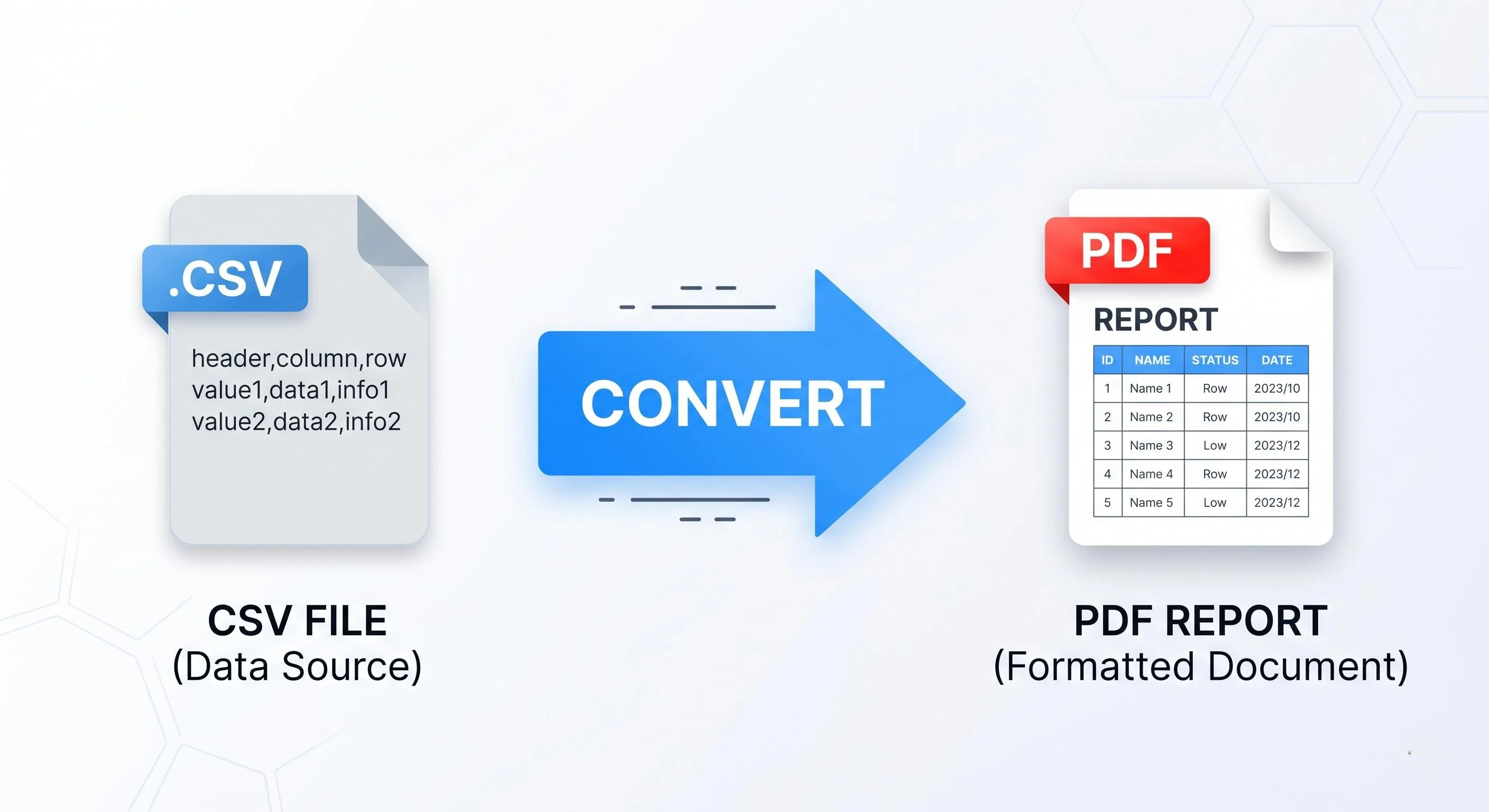
Convert CSV to PDF online without losing table formatting. Preserve rows, columns, and data structure while creating clean, printable PDF documents in seconds.
Introduction: The Monday Morning Spreadsheet Nightmare
Picture this: It is 9:15 AM on a Monday. Your team needs the quarterly sales report for an upcoming board meeting, and they need it now. The raw data lives in a Comma-Separated Values (CSV) file. You open it, hit a standard print-to-pdf function, and look at the preview.
It is an absolute disaster.
The columns are sliced in half. Page three contains a single, lonely column floating in a sea of white space. The numbers are truncated with ugly ### errors, and the carefully aligned currency formatting has vanished completely.
Managing tabular data across different platforms remains a persistent headache in modern office environments. When you need to convert CSV to PDF, you want a clean, structured table, not a broken text file.
Need a Quick Solution?
A browser-based online CSV converter can preserve rows, columns, and page structures automatically. If you want a seamless transition without software overhead, utilities like Doxbar can parse your data grid in seconds, keeping your layouts perfectly secure and presentation-ready.
How to Convert CSV to PDF Without Losing Formatting
If you want a quick, clean conversion that preserves your data grid perfectly without setting up heavy desktop software, a dedicated web workflow is the most efficient choice. Follow this simple, featured-snippet-friendly guide:
Upload CSV File: Navigate to the conversion tool and drop your .csv file into the upload zone.
Select Page Orientation: Choose Landscape orientation if your dataset has more than 5 columns to prevent text clipping.
Choose PDF Output: Select your target configuration for document generation.
Convert: Click the action button to process and auto-align your rows and columns.
Download PDF: Save your presentation-ready, beautifully formatted PDF document instantly.
CSV vs. PDF: Understanding the Structural Differences
To capture exactly why a raw data layout breaks during document export, we must look at how these two formats fundamentally handle information. A CSV is a stateless plain-text asset, while a PDF is a fixed spatial layout.
Here is how they stack up across key performance attributes:
The Problem: Why Raw CSV Files Break During PDF Generation
A CSV file contains your data points separated by commas and newlines—nothing else. There are no instructions regarding column widths, font choices, gridlines, or page margins.
When you try to export CSV to PDF using standard system print tools, the rendering engine has to guess how to space your information:
Infinite Grid vs. Fixed Paper: Spreadsheets operate on an infinite horizontal axis. PDFs, conversely, mimic physical paper boundaries (usually Letter or A4 size). Forcing an infinite horizontal grid into an 8.5-inch-wide box naturally results in squeezed, unreadable text or clipped margins.
Lack of Text Wrapping: Standard plain-text data viewers don't know how to handle long text strings inside cells, causing your numbers to overlap into the next column or vanish entirely behind the page boundary.
Device Variance: Opening a raw data file looks vastly different depending on your local system fonts and screen resolutions. Converting to a fixed template ensures consistent delivery.
Modern Solution Framework: What to Look For in a Tool
If you want to convert CSV to PDF online without data alignment errors, avoid legacy platforms that treat tabular data like a standard text document. Look for platforms built with these modern system requirements:
Modern Browser-Based Workflows vs. Legacy Methods
The way professionals manage file workflows has evolved. Let us look at how different approaches stack up when trying to extract a clean layout from a raw CSV file:
1. Traditional Desktop Software Heavyweights
Programs like Microsoft Excel give you deep control over print areas, margins, and custom widths. However, they require local installations, take time to load, and can alter layout properties based on your computer’s local printer configuration. If you are working on a mobile device or a lightweight tablet setup, this becomes highly inefficient.
2. Basic Legacy Online Converters
Many early-generation web tools upload your file to a remote server, run a basic command-line script, and send back a poorly formatted file. These tools often lack advanced parsing engines, meaning you lose your margins, and your data security depends entirely on unknown third-party server retention policies.
3. Smart Web Utilities
Modern web platforms balance convenience and accuracy. Utilities like Doxbar utilize secure cloud microservices to automatically analyze the structure of your input file, optimizing column distribution and inserting visual grids before rendering the final layout.
Pros & Cons of Web-Based File Adjustments
Let's be realistic: no single tool or method solves every file issue perfectly. Here is a balanced look at utilizing web-based conversion applications.
Pros
Speed: No installation required; you can fix a document from any device in seconds.
Consistency: Eliminates the "it looks fine on my computer but broken on yours" dilemma.
Simplicity: Skips the confusing layout configuration menus found in massive spreadsheet programs.
Cons
Extreme Customization Limits: If you need highly specific conditional formatting rules or intricate macro calculations rendered directly into the table, you may still need to adjust the layout manually within a dedicated spreadsheet editor before converting.
Internet Dependency: Requires an active network connection to access the web utility interface.
Expanding Your Document Automation Ecosystem
A smooth workflow doesn't stop at data sheets. True office productivity relies on a connected cluster of tools that handle various file transformations without friction. Building a complete cloud-native asset workflow allows you to maintain clean formatting, no matter what file type your team exports.
If you regularly handle business documents, financial records, or client pitch files, check out our dedicated deep dives to optimize your next workflow transition:
Convert Excel to PDF Online: How to handle multi-tab spreadsheet conversions seamlessly.
Reduce PDF File Size Safely: Compress heavy document exports for quick email attachments.
Merge Multiple PDF Documents: Combine individual tables and reports into a single cohesive file.
Convert PPTX to PDF Presentation-Ready: Preserve fonts, shapes, and image assets across slide designs.
Advanced FAQ Section
How do I prevent long strings of text from clipping in a table conversion?
To keep long text from clipping, choose an online tool that supports automatic text wrapping. If you are prepping the data manually beforehand, setting fixed column widths or widening the specific column ensures the rendering engine reserves enough spatial coordinates for the text string.
Why do some columns disappear entirely when converting to a document format?
This typically happens when the width of your dataset exceeds the physical print boundary of the page template. Switching your page setup from Portrait to Landscape orientation often fixes this by providing wider horizontal margins.
Is it safe to upload confidential financial data to web-based conversion tools?
Safety depends entirely on the tool's infrastructure. Look for platforms like Doxbar that use secure HTTPS encryption for data in transit and clear policies stating that files are automatically deleted from temporary server memory immediately after processing.
Will my cell background colors transfer from a spreadsheet to a final PDF?
Basic CSV text files do not contain color data. However, if you import your data into a spreadsheet platform first, add your background colors, and then run that file through our upcoming XLSX to PDF Converter, the layout engine will capture those hex codes and preserve the design.
How do I handle large datasets with thousands of rows?
For large datasets, ensure your converter supports multi-page pagination. A robust tool will automatically break the data rows at logical points and repeat the header row at the top of each new page so the table remains readable across fifty sheets.
What is the ideal page size for converting massive data sheets?
While A4 and Letter are standard for printing, choosing a larger virtual layout template like A3 or Legal gives you significantly more visual real estate to prevent your columns from overlapping or collapsing.
Why do dates or currency symbols sometimes turn into weird characters after converting?
This is almost always an encoding mismatch. Ensure your source file is saved using UTF-8 encoding. This universal standard ensures that characters like $ or specific date separators are correctly parsed by browsers and operating systems worldwide.
Can I edit the text inside the table after it has been converted?
Standard PDFs are designed to be static, read-only snapshots. If you need to make changes, it is always best practice to edit the source file and re-run the conversion. Alternatively, you can use an editable PDF tool to modify specific text boxes after the fact.
Why do my numbers lose their trailing zeros (e.g., 5.50 becomes 5.5) during parsing?
Raw text formats discard unneeded structural zeros unless explicitly instructed otherwise. To preserve precise financial formatting, make sure your data columns are explicitly formatted as "Text" or fixed "Currency" values before running them through a structural conversion tool.
Does converting files online consume a lot of internet bandwidth?
Not at all. Text-based data files are incredibly compact—often just a few kilobytes. Even after converting them into high-resolution layout files, the sizes generally remain small enough to download instantly over basic mobile data connections.
What is the difference between a tab-separated file and a comma-separated file during conversion?
The only difference is the delimiter character used to mark column breaks. Modern layout parsing tools easily auto-detect whether your file utilizes commas, tabs, or semicolons to build out the visual table structure.
Can I batch-convert multiple files at the same time?
Yes, modern document platforms are engineered to handle batch queues. You can drag a handful of files into the browser interface, and the system will process them sequentially or in parallel, saving you from clicking through individual files one by one.
Can I save a CSV directly to PDF using Google Chrome?
Yes. If you open a CSV file or view it inside a browser app like Google Sheets, you can use the built-in system print dialogue (Ctrl + P or Cmd + P) and select "Save as PDF" as your destination printer asset.
EEAT & Trust Signals: Our Editorial & Security Philosophy
At Doxbar, we believe digital tools should be transparent, straightforward, and secure. Document processing shouldn't mean giving up ownership of your data or installing mysterious software on your operating system.
Our specialized file processing team continuously tests tool operations across multiple environment landscapes—including Windows, macOS, Android, and iOS—to guarantee layout parity. By focusing on browser-native operations and clear file parsing structures, we aim to deliver reliable utility tools that protect your privacy while keeping your data looking clean, secure, and completely professional.
Conclusion: Clean Data, Better Workdays
Formatting issues shouldn't slow down your morning or cause friction with your clients. Understanding how data transforms from basic text strings into fixed visual structures empowers you to choose the right tools and layout strategies for your daily tasks.
When you need to clean up a document, adjust a layout, or handle an online CSV to PDF conversion quickly without downloading massive applications, check out Doxbar. It keeps your files secure, your workflows smooth, and your formatting exactly where it belongs.