
TXT to PDF: How to Convert Plain Text to PDF Without Formatting Errors
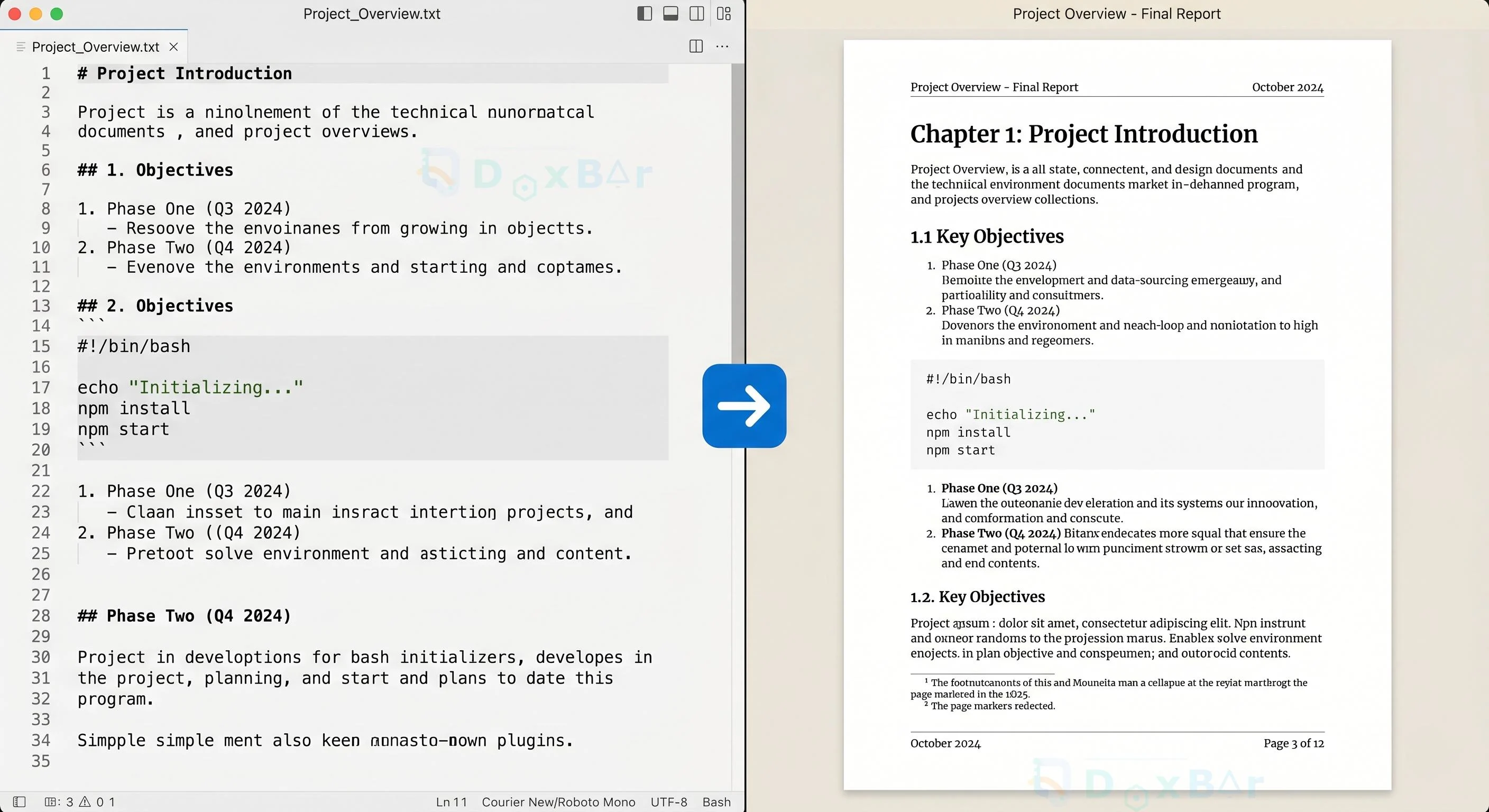
Convert TXT to PDF instantly without formatting bugs. Learn how to preserve margins, handle fonts, and secure your plain text files for professional sharing.
The Hidden Cost of the "Simple" .txt File
You have a critical server log, a drafted freelance contract, or a clean piece of documentation sitting on your desktop as a .txt file. It opens instantly, uses virtually zero storage, and contains exactly what you typed. It feels like the safest, most universal format on the planet.
Then you send it to a client or hit print.
On their screen, your carefully aligned columns of data collapse into a chaotic wall of words. When the printer finishes spitting out pages, your three-page document has stretched into seven because a different default system font altered the line wraps.
While Plain Text (.txt) is excellent for raw data entry and fast drafting, it lacks an internal layout engine. It relies entirely on the host application to determine how it looks. When your document needs to travel, collaborate, or transition to paper, using a text-to-PDF converter is the industry-standard method to freeze your layout, enforce typography rules, and ensure your recipient sees exactly what you intended.
What Is a TXT to PDF Conversion?
A TXT to PDF conversion is the process of translating raw, unformatted text data into a structured layout format that contains explicit rendering instructions. While a plain text file only stores character codes (like UTF-8), a .pdf (Portable Document Format) file encapsulates fonts, margins, page dimensions, and vector graphic outlines.
When you convert txt to a PDF, you are essentially wrapping raw data inside a universally recognized design grid. The conversion engine reads your characters, applies default or custom margins, maps the text to a standard font family, and outputs a file that looks identical on an iPhone, a Linux workstation, or an office printer.
Why Converting Plain Text to PDF Matters
The primary reason to convert a text file to a PDF is visual consistency. Plain text files do not contain information regarding line breaks, margins, or font choices. If a recipient opens a .txt file in Notepad on Windows, TextEdit on macOS, or a mobile browser, each platform renders the text differently based on local system preferences.
If you distribute a technical manual or an invoice as a .txt file, a user with customized accessibility fonts or a different screen resolution may see overlapping text or broken tables. PDF forces the rendering device to obey the file’s internal layout map, eliminating user-side variance and protecting your data's readability.
Structural Comparison: Plain Text vs. PDF
Understanding the fundamental operational differences between the two file formats highlights why plain text fails at document distribution and why PDF succeeds.
Feature / Metric
Plain Text (.txt)
Portable Document Format (.pdf)
Styling Capabilities
None (No bold, italic, or custom sizes)
Full Rich Text, Vector Images, Embedded Layouts
Font Management
Relies entirely on viewer defaults
Embeds font subsets within the file container
Page Boundaries
Non-existent (Continuous text stream)
Hard-coded page dimensions (Letter, A4, etc.)
Security & Locks
No native encryption or permissions
Supports passwords, digital signatures, and read-only locks
Common Problems When Handling Raw TXT Files
Working with unmanaged plain text files introduces several friction points in modern digital workflows:
Text Encoding Corruption: Opening a .txt file saved in one encoding standard on a system expecting another often results in garbled text strings, turning symbols like accented characters or currency signs into unreadable blocks.
The Printing Nightmare: Printing a .txt file directly from a browser or basic text editor rarely respects standard physical margins. This frequently leads to text running off the edge of the physical paper or splitting single lines onto two sheets.
Lack of Access Controls: Plain text files can be modified by anyone with a simple keystroke. There is no native way to append a digital signature or lock editing permissions to prove a document hasn't been altered post-distribution.
Common Mistakes Users Make During Conversion
While the conversion process seems straightforward, relying on the wrong methods can degrade document quality.
1. Using Browser "Print to PDF" for Data Reports
Using your browser’s default print command on a raw text file often appends unwanted headers and footers (like the local file path or the date) to the final document page.
2. Failing to Choose Monospaced Fonts for Tabular Data
If your text file contains server logs, code snippets, or ASCII tables aligned using spacebars, converting it using a proportional font (like Arial or Times New Roman) will ruin the alignment. Proportional fonts give different characters different horizontal widths, while monospaced fonts keep alignments pixel-perfect.
3. Ignoring Character Set Configuration
If your original file contains specialized symbols or multilingual text, running a conversion without specifying a universal encoding standard like UTF-8 can result in missing characters or empty squares in your output PDF.
Real-World Use Cases for TXT to PDF Conversion
Developer and IT Operations
Sysadmins and developers frequently generate large volumes of plain-text system logs. Converting these to PDF allows teams to archive them cleanly, use standardized PDF search functions to highlight errors, and attach them to support tickets without fearing format shifts across different ticketing platforms.
Legal and Contract Management
Freelancers, consultants, and legal teams often draft basic terms of service or initial agreement scopes in distraction-free text editors. Converting the final draft to PDF allows them to lock the text, insert corporate branding, append a digital signature block, and send it to clients as a formal, non-editable document.
Academic and Research Submissions
Researchers frequently write plain text outlines or collect raw data strings from lab instruments. Converting these files into a structured PDF ensures charts, instrument measurements, and data points do not drift when sent to peer reviewers using various operating systems.
When You Should Convert TXT to PDF
You should convert your text files to PDF if your workflow meets any of the following criteria:
The document is intended for external distribution: Invoices, contracts, portfolios, or documentation going to clients or stakeholders.
Physical printing is required: If the file will eventually be run through an office or commercial printer, a PDF ensures margin errors won't waste paper.
Document security matters: When you need to restrict editing, add watermarks, password-protect content, or ensure long-term, read-only archival compliance.
When You Should Keep Your Files as Raw TXT
Conversion isn't always the correct answer. Retain the .txt format if:
You are writing code or configuration scripts: Compilers, interpreters, and development environments require raw text input. Injecting PDF structures will render code completely unexecutable.
The file feeds automated data pipelines: If a backend system or script parses your file regularly for data metrics, it needs plain text or CSV formatting. Reading structured data out of a PDF requires complex layout parsing software.
You are in the rough drafting phase: If you are actively brain-dumping ideas, taking fast notes, or changing content every few minutes, the absolute simplicity of raw text remains unmatched.
Step-by-Step Workflow Guide: Converting TXT to PDF Seamlessly
To achieve an optimal conversion, follow this reliable browser-based process:
1. Clean and Audit Your Source File: Step 1.
Open your .txt document in your native editor. Ensure your encoding is set to UTF-8 to support all special characters and symbols.
2. Upload to an Online Document Converter: Step 2.
Navigate to Doxbar and select the designated tool workspace. Drag your file directly into the browser drop zone.
3. Configure Output Settings: Step 3.
Select your desired page geometry (e.g., Letter size or A4). Choose an appropriate typeface style—select monospaced settings for data tables or standard sans-serif arrays for readable prose.
4. Execute the Conversion: Step 4.
Initiate the process. The platform processes the string inputs, generates the internal PDF structure, balances margins, and compiles the output file within moments.
5. Validate and Download the File: Step 5.
Preview your generated PDF. Check that page breaks occur at natural thematic shifts rather than cutting off lines mid-sentence. Download your file directly to your local device.
Security & Privacy Considerations: Keeping Your Data Safe
When handling document pipelines, file security should be your top priority. Text documents often contain sensitive items like proprietary code bases, private financial spreadsheets, or employee records.
When using online conversion tools, it is crucial to verify that the platform uses end-to-end HTTPS encryption during transport and runs an automated deletion routine that wipes both the input and output files from production servers shortly after download. Furthermore, once your file becomes a PDF, consider using its native permissions matrix to add an owner password if you need to prevent external users from altering the data or copying sensitive strings.
Frequently Asked Questions
Is a converted PDF file larger than the original TXT file?
Yes. Plain text files only hold raw character weights ($1\text{ byte}$ per character for ASCII). PDFs require additional layout data to map font metrics, structural coordinates, and document pages. A $10\text{ KB}$ text file may grow to $40\text{ KB}$ or $100\text{ KB}$ as a structured PDF, which is still lightweight for email and web distribution.
Will converting a text file to PDF make the text non-editable?
It makes it non-editable by standard text processors like Notepad. However, if a user has a dedicated PDF editor, they can modify text objects unless you specifically apply password permissions or flatten the document into an image layout.
How do I handle non-English characters during conversion?
Ensure your source text file is saved explicitly with UTF-8 encoding, and make sure your text-to-PDF converter utilizes fonts that support extended Unicode blocks (such as CJK characters or Cyrillic symbols) to prevent broken character outputs.
Can I batch convert multiple TXT files to PDF at once?
Yes. Modern browser solutions like Doxbar.com support multi-file queues to batch process document pipelines simultaneously, removing the need to upload files one by one.
Why did my formatting change after I converted to PDF?
This happens when your source text file relies on system-specific variable line widths or space configurations, and the conversion tool uses a different font family or page size. Using a monospaced font family before initiating the compilation layer typically solves layout shifting.
Does a PDF converted from a TXT file work with screen readers?
Yes. Because the document is built directly from digital character streams rather than an image scan, the resulting PDF retains an accessible semantic text layer. This allows text-to-speech software and accessibility tools to read the file content natively.
Can I undo a TXT to PDF conversion to get my original text file back?
Yes. You can open any standard text-based PDF file, select all text items using your keyboard shortcuts, and paste them back into a basic text editor, or run it through a text extraction tool.
Will hyperlinked URLs inside my TXT file become clickable in the final PDF?
Most modern conversion engines automatically detect clean URL strings (such as https://example.com) during the build process and programmatically append active links underneath those coordinates.
Can I add images to a plain text file before converting it?
No. Plain text documents cannot contain image objects. If your workflow requires inserting images or brand logos alongside your text content before exporting a PDF, you must use an editor that outputs markdown, HTML, or DOCX formats first.
What standard page size does a TXT to PDF converter default to?
Most applications check regional system defaults, outputting to standard Letter size ($8.5 \times 11\text{ inches}$) across North America or standard A4 size ($210 \times 297\text{ mm}$) throughout Europe and international sectors.
Key Takeaways
Format Stability: TXT to PDF conversion eliminates cross-platform layout shifting, locking your document aesthetics across all user devices.
Print Reliability: Converting text to PDF guarantees proper physical paper margin respect and eliminates unexpected word wrapping bugs.
Font Management: Selecting monospaced fonts during text layout compilation preserves code alignment and data column spacing.
Data Integrity: Moving files to PDF allows you to apply security controls, protect text arrays from accidental edits, and append signatures.
Conclusion: Clean and Predictable Document Workflows
Plain text files are excellent for rapid drafting and unformatted log storage, but they lack the layout security required for dependable external sharing. Converting your TXT assets to PDF provides professional formatting, broad cross-platform presentation safety, and print-ready predictability.
When your business workflow demands fast, dependable, secure document transformations without the burden of heavy desktop application costs, try modern web tools like Doxbar.com. Keep your text clean, lock your presentation layouts, and share your critical files with absolute peace of mind.