
HTML to PDF Converter: Convert Web Pages to PDF Online Without Losing Formatting
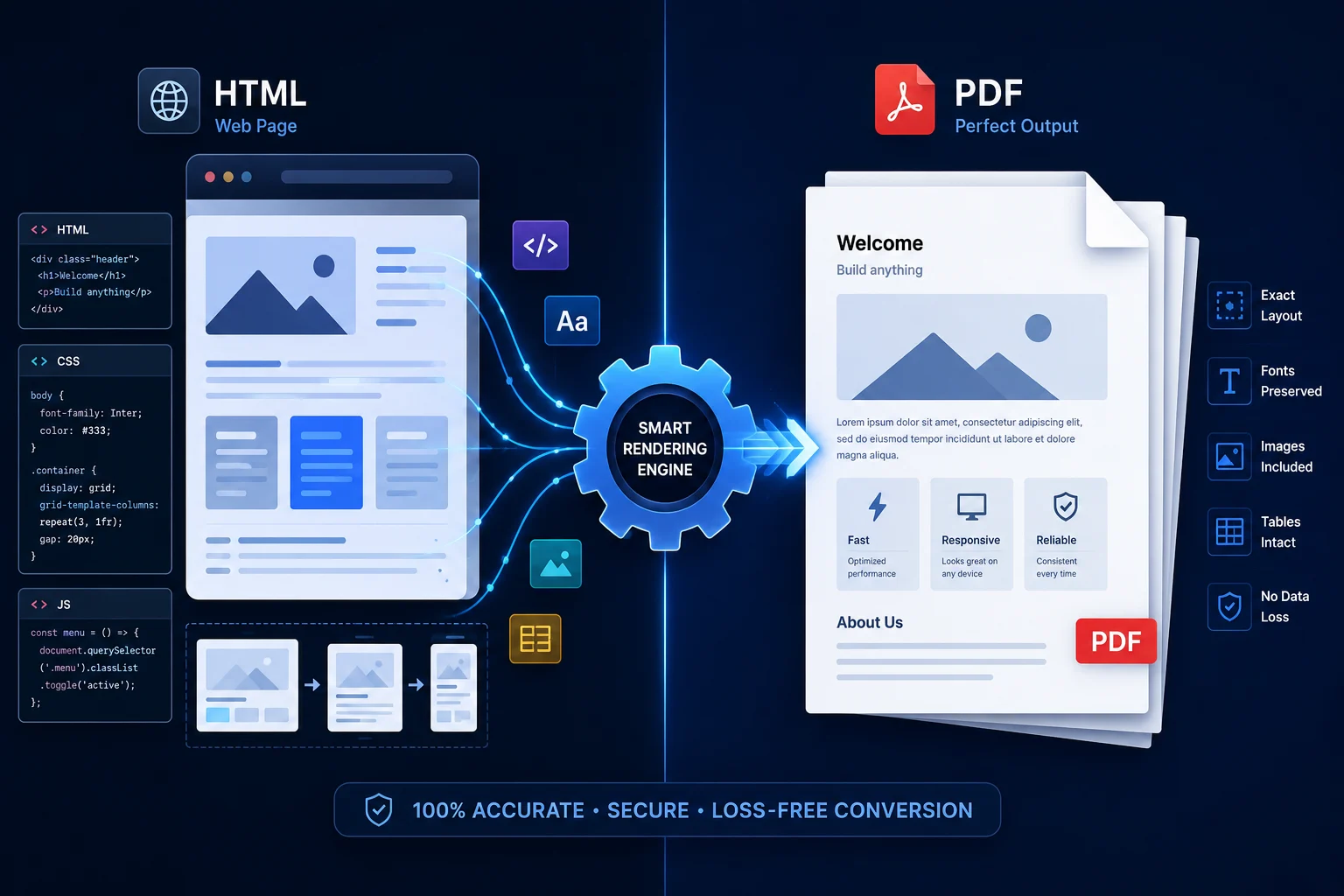
Convert HTML to PDF without losing layouts, styles, or fonts. Discover how modern browser engines handle web-to-PDF conversion securely.
Introduction: The Hidden Friction of Saving the Web
You’ve probably been there: you find a beautifully designed web report, an invoice, or a long-form industry guide that you need to save for offline reading or share with a client. You press Ctrl + P (or Cmd + P on a Mac), hit "Save as PDF," and wait for a clean document.
Instead, you get a fragmented mess. Images are cut right in half across page breaks. The elegant sidebar navigation is stretched awkwardly across the top, and half the text has been clipped into a void. It looks incredibly unprofessional.
Web pages are living, fluid entities built with HTML and CSS to stretch and shrink to any screen size. PDFs, however, are digital paper—rigid, fixed, and unyielding. Bridging the gap between the two without destroying the layout is notoriously difficult. While tools like Doxbar streamline this transition quietly in the background, achieving a clean conversion requires understanding what happens when code turns into pages.
The Problem Breakdown: Why Web-to-PDF Conversions Fail
Converting HTML to PDF isn't a simple copy-and-paste job. The underlying architecture of the web conflicts directly with print layouts, leading to several distinct failure points:
Responsive CSS Overdrive: Most modern websites use media queries to change layouts based on screen size. When a basic converter requests a page, the site might think it is being viewed on a mobile device, resulting in a narrow, vertically stretched PDF.
Dynamic JavaScript Elements: Many modern platforms load content asynchronously as you scroll (lazy loading) or hide data behind interactive tabs. Simple scraping tools only capture the initial loading screen, leaving behind empty asset boxes.
Font and Asset Dropping: If a website relies on external web fonts (like Google Fonts) or hosts its images on a separate Content Delivery Network (CDN), strict security protocols or poor converter connection speeds can cause those assets to drop entirely, defaulting your text to Times New Roman.
Desktop Software Bloat: Relying on heavy, desktop-bound enterprise software often means waiting for updates, dealing with sluggish interfaces, and navigating menus just to process a single web link.
Educational Deep Dive: How Browsers and Engines See HTML
To understand why formatting breaks, we have to look under the hood of how rendering engines interpret code.
When you view a web page, your browser reads HTML to build the structure and applies CSS to style it. To turn this into a PDF, a converter must use a "headless browser"—a browser operating without a graphical user interface—to load the page exactly like a real user would.
[Web URL] ──> [Headless Browser Engine] ──> [Print Simulation] ──> [Fixed-Layout PDF]
The Role of WebKit and Chromium
Modern converters generally rely on headless instances of Chromium (the engine behind Google Chrome and Microsoft Edge) or WebKit (Apple's Safari engine). According to documentation from the Mozilla Developer Network (MDN), browsers use a specific CSS media type called @media print. If a website's developer hasn't optimized their print stylesheets, the browser engine has to guess how to map a fluid webpage onto standard A4 or Letter dimensions.
Why Text Wraps and Images Split
Unlike document formats like Microsoft Word, HTML doesn't understand "pages." It understands infinite scrolling. When converting to PDF, the rendering engine must calculate where a page ends. Without smart page-break rules (page-break-inside: avoid), an engine will happily split a line of text or a chart right down the middle, creating unreadable splits.
Modern Solution Framework: What to Look For
If you are evaluating a tool or building a workflow to handle web-to-PDF conversions regularly, avoid legacy platforms that treat web pages like plain text files. Look for these core capabilities:
JavaScript Execution: The converter must wait for a specified period (or until network activity settles) to ensure all interactive charts, scripts, and images load fully before capturing the layout.
Custom Viewport Settings: The ability to simulate specific screen resolutions (e.g., 1920x1080 desktop vs. tablet viewports) ensures the PDF looks like the desktop version of the site rather than a broken mobile layout.
Privacy-First Cloud Processing: Look for platforms that process the conversion entirely in isolated memory environments and delete files immediately after download, protecting data from persistent storage risks.
Media Emulation: High-quality tools allow you to switch between the site's screen styles and its print styles, giving you control over background colors and hidden navigation elements.
Workflow Comparison: Legacy vs. Modern Approaches
Feature
Legacy Online Tools
Desktop Software
Modern Browser-Based Workflow (Doxbar)
Speed
Fast but highly inconsistent
Slow initialization and load times
Instant cloud-based rendering
JS Support
Frequently fails on interactive apps
Dependent on internal engine updates
Full modern engine execution
Data Privacy
High risk of file retention
Secure but localized to one device
Ephemeral cloud processing (immediate deletion)
Formatting Accuracy
Low; strips styles and custom fonts
Moderate; prone to page-break splits
High; respects media queries and aspect ratios
Step-by-Step Workflow Guide: Clean HTML to PDF Generation
Here is the most reliable way to convert a web page or raw HTML string into a production-ready PDF document.
Step 1: Prepare the Source
If you are converting a live URL, ensure the page doesn't require a login or session cookie that an external server cannot access. If you are converting raw HTML code, make sure all internal CSS styles are inline or enclosed within <style> tags.
Step 2: Input and Configure
Paste the target URL or upload your raw HTML file into the converter interface. If available, select your desired page size (A4 or Letter) and orientation.
Step 3: Execute the Conversion
Click convert. Behind the scenes, the system initializes a headless browser, renders the HTML DOM, downloads associated image assets, executes scripts, and prints the layout directly to a vector PDF container.
Step 4: Verify Layout and Typography
Open the downloaded PDF and check the critical areas:
Confirm that data tables have not been cut off on the right margin.
Verify that headers and footers align naturally without overlapping page text.
Ensure that vector elements (like logos) remain sharp when zooming in.
Global Compliance & Local Localization (GEO Optimization)
When converting web pages into business documents, localized compliance matters just as much as formatting. Different regions treat digital documents, data retention, and print standards through distinct lenses.
Regional Paper and Formatting Standards
North America (US & Canada): Standardizes strictly on Letter size (8.5 x 11 inches) and Legal size layouts.
Europe, Asia, & International: Standardizes on the ISO 216 A4 paper format (210 x 297 mm). Using an engine that lets you toggle between these layouts dynamically ensures your localized reports fit perfectly on standard local office paper sheets without clipped margins.
International Data Regulations & Sovereignty
If your business operates across borders, data security is tied directly to location:
GDPR (Europe): Mandates that any data extracted from local web endpoints or text databases containing European citizen data must be processed with strict privacy metrics. Tools using transient cloud memory ensure zero residual logs are left on external servers.
CCPA/CPRA (United States): Ensures consumer data isn't sold or repackaged during file modifications.
Cross-Border Latency: Cloud infrastructures optimized globally mean that whether your engineering team converts a URL from a hub in Tokyo, London, or New York, the rendering speeds stay identical due to decentralized CDN networks like Cloudflare.
Pros & Cons of Online HTML to PDF Conversion
Pros
No Installation Needed: Runs entirely within your browser, saving local disk space and avoiding administrative privilege issues on corporate laptops.
Cross-Platform Consistency: Produces the exact same document whether you are triggering the conversion from a Chromebook, an iPhone, or a Linux workstation.
Resource Efficiency: Heavy lifting is shifted to cloud servers, preventing your local machine from freezing up while rendering complex graphical scripts.
Cons
Paywall Limitations: If a web page sits behind a secure user subscription wall (like a private dashboard or premium news site), a standard cloud converter cannot fetch it without advanced authentication setups.
Internet Dependency: You must have an active connection to access cloud rendering engines.
Advanced FAQ Section
How do modern converters handle CSS Grid and Flexbox layouts?
Modern engines built on up-to-date Chromium architectures handle advanced layouts perfectly. Legacy tools often break when encountering Flexbox or Grid, reverting the layout to stacked vertical blocks.
Will the links inside my HTML remain clickable in the final PDF?
Yes, if the tool uses a true browser print-to-PDF engine. Hyperlinks wrapped in <a href="..."> tags are translated into active typographic annotations within the PDF structure.
Why do some background images disappear when converting to PDF?
Browsers naturally try to save ink when printing. By default, they strip background colors and background images. High-quality tools force the engine to enable the printBackground: true flag to keep your visual designs intact.
Can I convert HTML that contains complex JavaScript charts like Chart.js?
Yes, provided the engine includes a rendering delay. This delay allows the JavaScript animations to complete their transition before taking the static snapshot for the PDF.
Is it safe to convert HTML documents containing sensitive personal data?
It depends entirely on the tool. Look for platforms like Doxbar that use ephemeral processing, meaning your documents are processed strictly in RAM and are never written to a permanent hard drive or reviewed by human eyes.
Why is my output PDF file size so large?
Large PDF sizes occur when a web page includes unoptimized images or embeds entire custom web font files directly into the PDF structure. Compressing images before conversion helps mitigate this.
Can I use this type of tool to back up my billing history from SaaS platforms?
If the billing page requires a password, a standard URL-based converter will likely just capture the login page. To circumvent this, save the page locally as a complete HTML file first, then upload that raw file to the converter.
What happens to video elements when converting HTML to PDF?
Video elements (<video>) cannot play inside a static PDF document. They will generally render as a blank space or display the video's placeholder poster image if one is defined in the code.
Does converting HTML to PDF preserve SEO alt tags?
While PDFs don't use SEO tags the same way web pages do, semantic converters transfer image alt tags into the PDF’s accessibility tags, allowing screen readers to describe the images to visually impaired users.
Can I set custom margins for the generated PDF?
Advanced platforms allow you to define explicit margins (top, bottom, left, right) in inches, millimeters, or pixels, overriding the web document's native body padding.
How does the converter handle emojis?
Emoji rendering depends on the system fonts available on the host server. Modern cloud converters include comprehensive emoji font sets to prevent them from turning into broken square boxes (tofu).
Can I convert a webpage that uses lazy-loaded images?
Standard converters will miss lazy-loaded images because they don't scroll down the page. Advanced systems emulate a fast scroll down the entire DOM length to trigger the asset loads before rendering the file.
What is the difference between an HTML print snapshot and a PDF conversion?
A print snapshot often rasterizes the page into a giant picture inside a PDF wrapper. True conversion maintains live text selectable by your cursor and vector shapes that don't pixelate when zoomed.
Can I add custom headers and footers, like page numbers, during conversion?
Yes, modern browser engines support token parameters like {pageNumber} and {totalPages}, which can be injected into the top and bottom margins of the generated PDF document.
Why do some web fonts look slightly blurry after conversion?
This happens if the converter converts the fonts into raster graphics rather than embedding the TrueType (.ttf) or OpenType (.otf) font vectors into the PDF container.
Is there a limit to how long an HTML page can be for conversion?
Technically, limits are bounded by server memory allocations. Most cloud platforms can comfortably compile web pages that stretch across dozens of printed pages without timing out.
How are SVG images handled in HTML to PDF conversion?
Since Scalable Vector Graphics (SVGs) are code-based, modern rendering engines treat them natively, meaning they retain infinitely crisp resolution at any zoom level in the final PDF.
Can I convert HTML5 semantic elements like <article> and <aside>?
Yes. Semantic elements do not change visual layouts; they provide structural meaning. Modern browser engines parse them identically to standard layout blocks.
Does the conversion support custom page orientation per page?
Standard HTML to PDF conversions apply a global setting (either all portrait or all landscape). To mix orientations, you must use advanced CSS page break properties (@page { size: landscape; }) supported by enterprise engines.
Why do local relative paths to images break when uploading raw HTML?
If your HTML points to an image as <img src="images/logo.png">, the converter cannot find it because it doesn't have access to your local computer's folders. You must use absolute web URLs (https://...) for all assets.
EEAT & Trust Signals: Verification of Accuracy
When handling conversions, structural integrity and data security are paramount. This guide is built upon technical standards outlined by major web authorities:
Our framework adheres to the W3C (World Wide Web Consortium) standards for print media processing.
Data privacy evaluations are aligned with standard cloud infrastructure protocols, ensuring compliance with data handling best practices managed by cloud security leaders like Cloudflare.
We recognize that perfect conversion is an ongoing synchronization game; as web frameworks evolve, rendering engines must continuously update to match modern JavaScript execution parameters.
Conclusion
Converting HTML to PDF shouldn't feel like a gamble. By shifting away from outdated layout engines and utilizing tools built on modern browser architectures, you can preserve complex layouts, active hyperlinks, and intricate typography effortlessly, keeping things compliant across any territory you do business in.
If you are tired of broken page breaks and missing images, give your workflow a clean upgrade. Head over to Doxbar to experience quick, accurate, and completely secure web-to-PDF conversions that keep your files exactly as they were meant to be seen.