
OCR PDF Formatting Issues: How to Fix Broken Layouts, Tables & Fonts (2026 Guide)
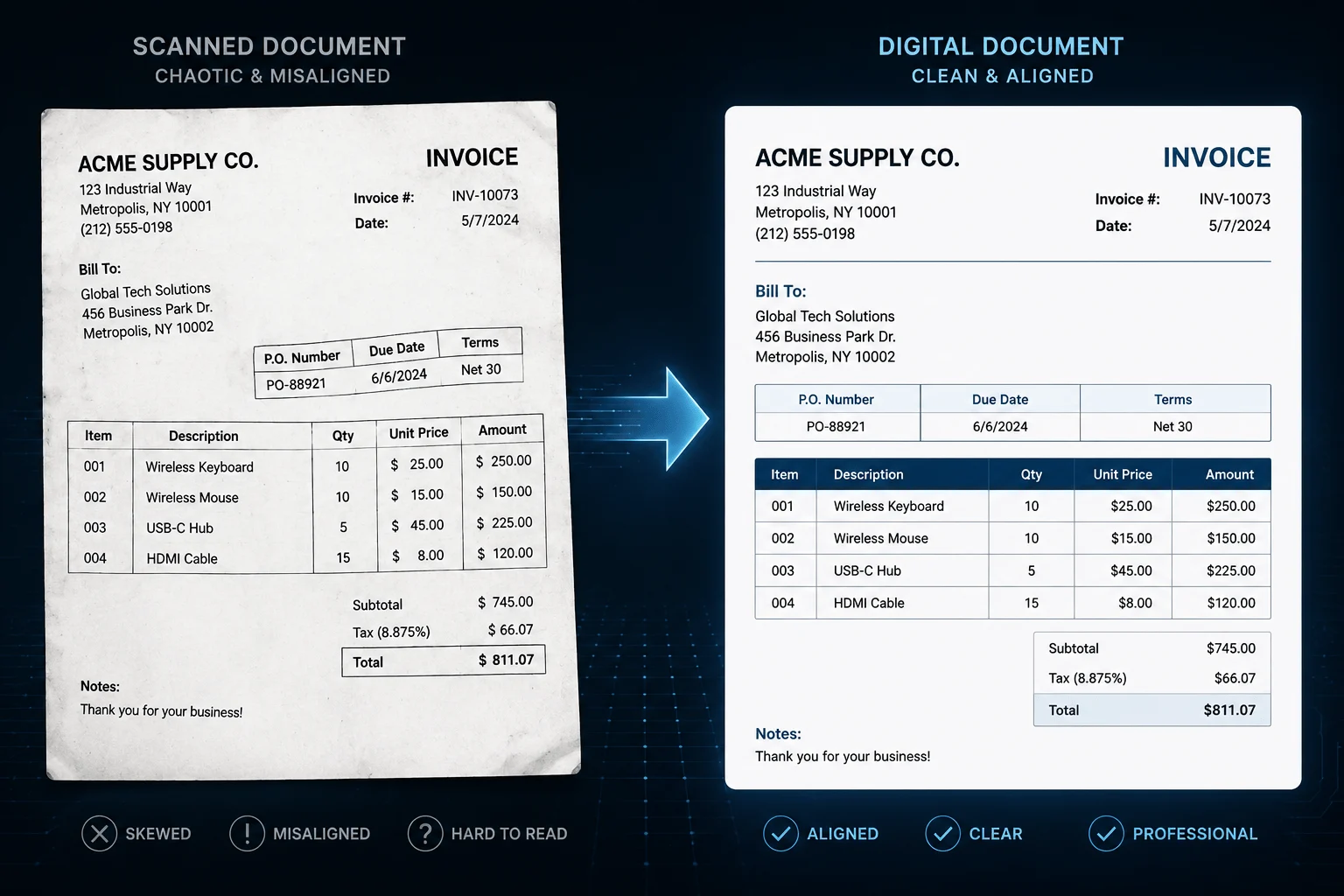
We have all been there. A client or your manager sends over a scanned PDF document—maybe it is an invoice, a signed contract, or an old report. You need to edit some text inside it, so you upload the file to an online OCR (Optical Character Recognition) tool, expecting a perfectly editable Word document in a few seconds.
Instead, you open the downloaded file and find a digital disaster. Paragraphs are split into random, overlapping text boxes, original fonts have vanished into generic system defaults, and the tables are a complete mess with rows and columns jumbled together.
In the end, you realize that fixing that broken layout takes more time than just retyping the entire document from scratch. This frustration is incredibly real. Document conversion shouldn't feel like a lottery every single time, which is why we will break down exactly why this happens and how to fix it without the headache.
Why OCR PDF Conversions Break Your Formatting
To put it simply, the root of the problem lies in the fact that PDFs and Word (.docx) files use completely different digital architectures. They speak entirely different languages.
1. PDFs are "Digital Paper"
The PDF format was originally developed by Adobe with one main goal: to ensure a document looks the same whether you open it on Windows, Mac, Linux, or a smartphone. A PDF does not understand paragraphs, line breaks, or table columns. It only understands X and Y coordinates. It simply knows that a specific word belongs exactly 3 inches from the top and 2 inches from the left margin. It acts like a digital stamp on a piece of paper.
2. Word Files are "Fluid"
On the other hand, Microsoft Word or Excel files are completely dynamic and fluid. If you increase the font size or change the margins, the text automatically flows to the next line. The chaos happens when a conversion engine tries to force a rigid PDF layout into this fluid Word environment. The engine has to guess where a paragraph ends and where a new line begins. When those guesses fail, your layout breaks.
3. Font Mismatches and Alignment Shifts
If a scanned PDF contains a specific font that is not installed on your computer or available on the converter's server, the software substitutes it with a default alternative. This minor switch changes individual character widths, causing text to spill over, margins to shift, and the entire layout to misalign.
The Biggest Causes Behind the Mess
You don't need to dive into complex software engineering to understand why things go wrong. Most formatting disasters come down to a few common triggers:
Faint Table Borders or Gridlines: When scanning a table, if the internal lines are faint, faded, or dotted, the OCR engine fails to recognize it as a table. It reads the data as standard body text and merges everything into a chaotic single line.
Multi-Column Layouts: If an OCR tool doesn't identify that a page has two distinct columns (like a magazine or newspaper layout), it will read straight across the page. It reads the first line of the left column and immediately jumps to the first line of the right column, completely scrambling the text flow.
Low-Quality Scans and Shadows: Quick mobile photos often capture uneven lighting or shadows. The OCR engine misinterprets these dark patches as part of the document background, turning the actual text in those areas into strange symbols or gibberish characters.
Best Practices: How to Reduce Formatting Issues Before Converting
You can eliminate 80% of conversion issues before even clicking the "Convert" button by following a few simple steps:
1. Clean Up the Source File
If you are scanning the document yourself using a mobile app, make sure the page is completely flat and straight. Folds, creases, and curved pages are an OCR engine's worst enemy. Capture the image in bright, even lighting so the background remains a clean, high-contrast white.
2. Choose the Right Resolution (DPI)
To get the best character recognition without creating massive, unmanageable file sizes, target a scanning resolution of 300 DPI (Dots Per Inch). Dropping below 200 DPI makes fonts look fuzzy, making it nearly impossible for the converter to accurately read the characters.
3. Select the Correct Document Language
Many documents contain a mix of languages. Before starting a conversion, go into the tool's settings and specify the primary languages used in the file. This tells the internal dictionary parser exactly what character sets to expect, drastically increasing accuracy.
Legacy Tools vs. Modern Web Engines: A Realist's Comparison
Based on hands-on testing of various conversion methods available today, here is how the primary options stack up:
Feature
Legacy Online Tools
Professional Desktop Software
Modern Web Engines (like Doxbar)
Table & Layout Handling
Very weak. Tables easily collapse into plain, unformatted text blocks.
Quite good, but requires navigating heavy menus and manual settings.
Automated layout reconstruction handles structures cleanly.
Speed & Usability
Slow, heavily cluttered with pop-up ads, and frustrating interfaces.
Bulky software that slows down local systems and requires license fees.
Lightweight, running seamlessly in your browser within seconds.
Data Privacy
Unclear data retention loops with no guarantees on file safety.
Completely secure since all data processing stays localized on your machine.
Secure, automated scripts permanently delete files after processing.
Common Mistakes to Avoid
Treating All PDFs the Same: There is a huge difference between a native PDF (where you can select text with your mouse) and a scanned image PDF. A native PDF does not need heavy OCR analysis, and forcing it can actually ruin perfectly intact formatting.
Printing Directly Without Reviewing: No converter is 100% flawless. Always do a quick manual check before sharing or printing a converted file. Pay close attention to mathematical symbols, subscripts or superscripts (H2O or X²), and bottom-of-the-page footnotes.
Step-by-Step Guide to a Cleaner Conversion
For a fast, headache-free document conversion, follow this reliable routine:
Prepare Your File: Keep your scanned PDF or image file readily available in a local folder on your computer or phone.
Select Your Tool: Open your browser and head to a trusted, secure web converter like Doxbar.
Upload and Choose Format: Drag and drop your file into the conversion zone and select your target output format (such as .docx or .xlsx).
Convert and Download: Click the convert button, let the engine process the file, and download the resulting document to your drive.
Apply a Quick Font Reset: If you notice minor text misalignments upon opening the document, select all text (Ctrl + A) and change the font to a standard web-safe option like Arial or Calibri. This instantly resynchronizes the document's layout boundaries.
Summary: Pros & Cons of Web-Based Converters
Pros
No bulky software installations or expensive registration keys required.
Easily accessible across any device, whether you are on Windows, Mac, or mobile.
Cloud processing ensures conversion speeds do not rely on your computer's local hardware specs.
Cons
The tools are entirely inaccessible without a stable, active internet connection.
Large documents (like a 500-page manual) might hit file size thresholds on standard free tiers.
Focused FAQ Section
1. Why does OCR text sometimes turn into unreadable gibberish?This typically happens when the source document has a very low resolution or uses rare, artistic fonts. When the OCR engine cannot confidently match the physical shape of a letter to its character dictionary, it substitutes it with random symbols.
2. Does an OCR tool always preserve multi-column layouts perfectly?Not always. Standard converters often read left-to-right across the entire page, missing the blank gap separating two columns. However, modern engines with advanced layout analysis can recognize column structures and keep them isolated.
3. Why did all my hyperlinked text disappear after conversion?In a PDF, the visible text and the underlying URL destination often sit on two entirely separate layers. Basic OCR tools only read the visible surface of the "paper," which strips away the hidden link data and leaves behind plain text.
4. Is it safe to upload confidential files to online converters?It depends entirely on the platform you choose. Modern, reputable tools use end-to-end encryption and feature automated deletion policies that wipe your files within 30 minutes. Always check a platform's privacy policy before uploading sensitive financial or legal documents.
5. Why do my bulleted lists turn into standard dashes or spaces?Bullet points are unique design glyphs rather than standard text characters. If a converter cannot identify the exact glyph code, it defaults to a safe text alternative like a hyphen or an indent spacer within your Word file.
6. Why is my converted Word file sometimes much larger than the original PDF?If an OCR engine struggles to read a complex section, a mathematical equation, or a chart, it gives up on turning it into text. Instead, it captures that specific block as an image asset and embeds it into the Word file, which significantly inflates the overall file size.
7. Can online tools handle documents with mixed languages?Yes, provided you use an engine that supports multi-lingual OCR. Specifying all the languages present in the document before running the tool ensures the parser switches between dictionaries accurately.
Conclusion
A ruined document layout doesn't have to be the tax you pay for converting a PDF. Once you understand the basic mechanics of how text data transitions from absolute coordinates to a fluid text layout, avoiding these errors becomes second nature. Combining clean source files with a secure, modern conversion process can easily cut your document management time in half.
If you are tired of spending hours realigning broken tables and fixing scattered fonts, skip the clunky desktop software and experience a smoother workflow by trying the streamlined tools over at Doxbar.