
Convert PDF to Image Online Free Without Losing Quality
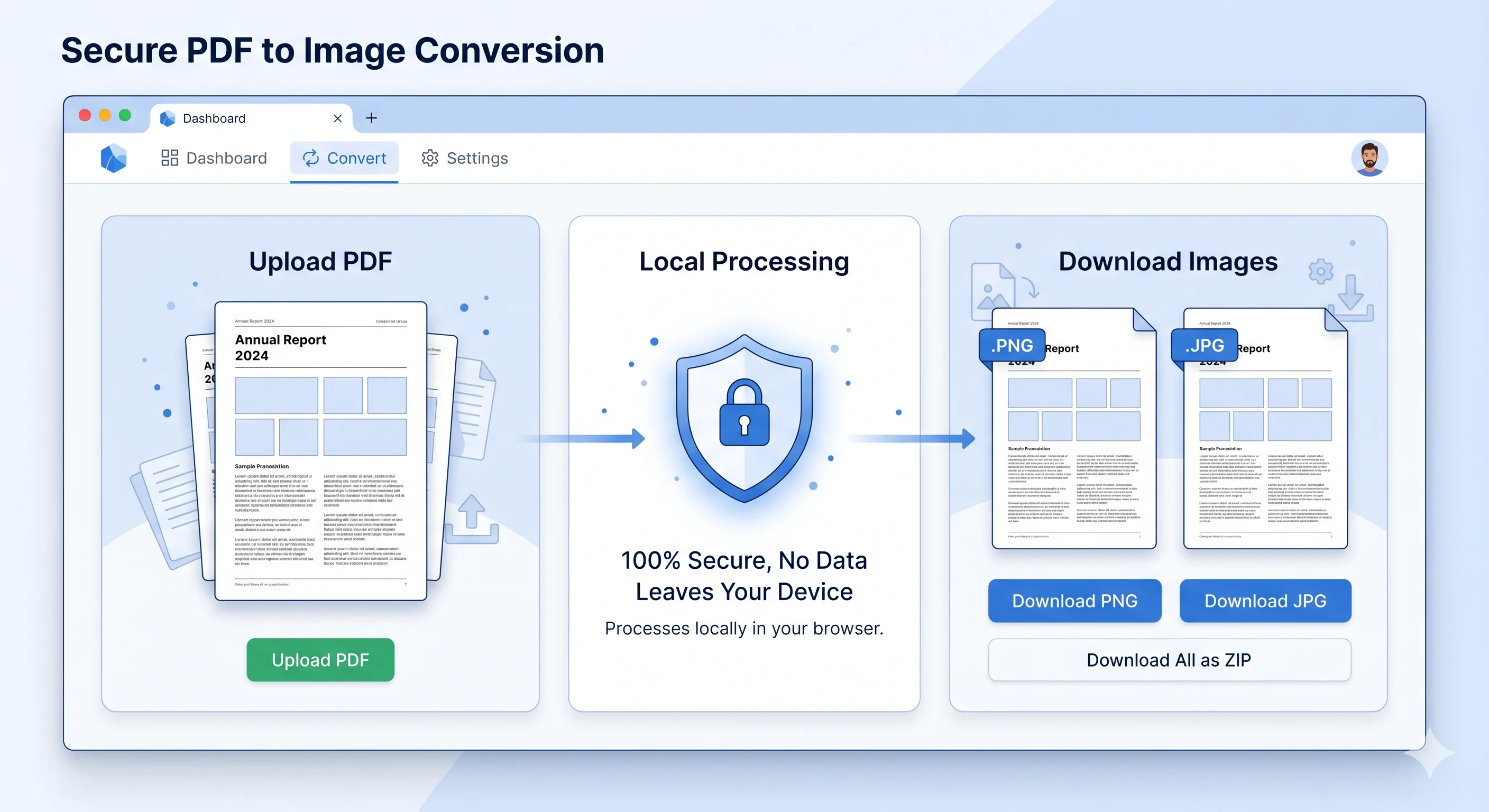
Convert PDF to Image Securely in Your Browser
Need to convert a PDF into JPG, PNG, or WebP without uploading your files to a server?
Modern browser-native tools now allow users to convert a PDF to image directly inside the browser using local processing. That means your files stay on your own device, conversions happen faster, and sensitive documents never get uploaded to unknown third-party servers.
Whether you want to:
Share PDF pages on Instagram or LinkedIn
Send lightweight previews in Slack or WhatsApp
Convert reports into image slides
Preserve document formatting
Remove hidden metadata from PDFs
A secure browser-based PDF to image converter can simplify the entire workflow.
Platforms like Doxbar use local browser rendering technology to process documents entirely within your device memory, helping users maintain both speed and privacy.
🛡️ Try 100% Private PDF to Image Conversion Today. Stop risking your confidential data with server-based upload tools. Experience lightning-fast, secure, and high-fidelity browser-native conversion with Doxbar. Your files never leave your device.
👉 [Convert Your PDF to Image Now (Free & Fast) — Button Link]
What Is PDF to Image Conversion?
PDF to image conversion is the process of turning PDF pages into image formats, such as:
PNG
JPG
WebP
Instead of keeping the document as a vector-based PDF, the converter renders each page into a flat pixel-based image.
This is useful because many websites, apps, and social platforms do not support PDF uploads properly. Images are easier to preview, faster to share, and more compatible across devices.
Why People Convert PDF to Image
There are several real-world reasons why users convert PDFs into images.
Better Social Media Sharing
Platforms like Instagram and many mobile apps do not support PDF uploads directly. Converting the pages into images allows creators, marketers, and designers to share documents visually.
Faster Mobile Viewing
PDF files can render slowly on mobile devices because browsers must calculate vector layouts in real time. Images load faster and provide a smoother experience.
Preserve Layout and Formatting
A properly rendered PNG or JPG preserves the original appearance of the document exactly as intended.
Remove Hidden Metadata
Standard PDFs can contain hidden layers, embedded metadata, and searchable text. Converting the document into an image permanently flattens the content.
This is especially useful when sharing sensitive or partially redacted documents.
Universal Compatibility
Images work almost everywhere:
Websites
Messaging apps
Presentation tools
CMS platforms
Social media
Mobile devices
How Browser-Native PDF to Image Conversion Works
Traditional online converters usually upload documents to remote servers for processing.
That creates several problems:
Privacy concerns
Slow upload times
Layout issues
Font replacement problems
Server-side storage risks
Modern browser-native converters work differently.
Instead of sending the file to a remote server, the browser processes the document locally using technologies such as:
JavaScript
HTML5 Canvas
WebAssembly
PDF rendering engines
The conversion process usually works like this:
The browser reads the PDF locally
The rendering engine parses the page structure
The PDF page gets drawn onto a canvas
The canvas exports the page as PNG, JPG, or WebP
The image downloads directly to the device
Because the file never leaves the browser memory, the process is significantly more private and secure.
PDF to PNG vs JPG vs WebP
Choosing the right output format matters.
PNG
PNG uses lossless compression.
Best for:
Text-heavy pages
Charts
Diagrams
UI screenshots
Transparent backgrounds
Advantages:
Sharp text
Better quality
No visible compression artifacts
JPG
JPG uses lossy compression to reduce file size.
Best for:
Photo-heavy pages
Social media sharing
Faster uploads
Advantages:
Smaller file size
Good compatibility
Faster sharing
Disadvantages:
Can reduce sharpness
May create compression artifacts
WebP
WebP is a modern image format optimized for the web.
Best for:
Websites
Blog images
Performance optimization
Advantages:
Excellent compression
Smaller files than JPG
Better quality-to-size ratio
Why Resolution (DPI) Matters
When converting PDF to image, resolution directly affects image clarity.
Low DPI settings can make text blurry or difficult to read.
Common DPI recommendations:
Use Case
Recommended DPI
Web previews
72 DPI
Presentations
150 DPI
High-quality printing
300 DPI
Higher DPI produces sharper images but also increases memory usage and file size.
How to Convert PDF to Image Using Doxbar
The process is simple and works entirely inside the browser.
Step 1: Upload the PDF
Drag and drop your file into the converter.
The browser reads the file locally without uploading it to external servers.
Step 2: Choose Output Format
Select:
PNG
JPG
WebP
Choose the format based on your use case.
Step 3: Select Resolution
Choose the image quality or DPI level.
Higher settings preserve more detail.
Step 4: Start Conversion
The browser-native engine renders each page locally using canvas-based rendering.
Step 5: Download Images
The converted images download instantly to your device.
No account registration or software installation is required.
Security Benefits of Local PDF Processing
Security is one of the biggest reasons users now prefer browser-native document tools.
No File Uploads
Traditional online converters send documents to remote servers.
Local processing avoids that entirely.
Better Privacy Protection
Sensitive files stay inside your browser memory.
That reduces exposure risks for:
Financial documents
Legal reports
Internal presentations
Medical records
Business contracts
Reduced Server-Side Risks
Since files are not stored remotely, there is no risk of server-side leaks or unauthorized document storage.
Better Compliance Support
Local processing helps organizations support privacy-focused workflows aligned with regulations such as:
GDPR
HIPAA
CCPA
Common PDF to Image Problems and Fixes
Blurry Text After Conversion
Cause: Low DPI settings.
Fix: Use 150 DPI or 300 DPI.
Layout Breaking or Font Issues
Cause: Some converters fail to render embedded fonts correctly.
Fix: Use browser-native converters that preserve embedded font rendering.
Large Files Causing Browser Slowdowns
Cause: High-resolution multi-page rendering uses significant RAM.
Fix: Convert pages sequentially or reduce DPI.
JPEG Images Looking Pixelated
Cause: Aggressive compression.
Fix: Increase image quality settings or use PNG.
Can PDF to Image Conversion Remove Hidden Data?
Yes.
Converting a PDF into a flattened image removes:
Hidden layers
Embedded metadata
Searchable text layers
Invisible annotations
This is one reason many professionals convert sensitive PDFs into images before sharing them externally.
PDF to Image on Mobile Devices
Modern browser-based converters also work on:
Android browsers
iPhone Safari
Chrome Mobile
Edge Mobile
However, very large files may process more slowly on phones because mobile devices have less RAM than desktop systems.
For large conversions, desktop browsers are usually recommended.
Browser-Native Conversion vs Traditional Online Converters
Feature
Traditional Online Converter
Browser-Native Converter
File Upload Required
Yes
No
Privacy Risk
Higher
Lower
Local Processing
No
Yes
Software Installation
No
No
Font Preservation
Sometimes inconsistent
Better
Conversion Speed
Depends on the server
Depends on the device
Offline Capability
Limited
Possible after page load
Who Should Use PDF to Image Conversion?
PDF to image tools are useful for:
Designers
Students
Marketing teams
Bloggers
Agencies
Legal professionals
HR departments
Developers
Content creators
Common use cases include:
Social media posting
Document previews
Presentation slides
Portfolio sharing
Website publishing
Archive snapshots
Frequently Asked Questions
Is it safe to convert PDF to image online?
It depends on the tool.
Server-based converters upload files externally, while browser-native tools process documents locally for better privacy.
What is the best format for PDF images?
PNG is best for sharp text and graphics. JPG is better for smaller file sizes. WebP is ideal for websites.
Can I convert password-protected PDFs?
Yes. Modern browser-based tools can decrypt and process password-protected files locally after you enter the password.
Why do some PDFs look blurry after conversion?
Low DPI settings usually cause blurry output.
Increasing the resolution improves clarity.
Does converting PDF to image remove hidden metadata?
Yes. Flattening the document into an image removes hidden PDF layers and metadata.
Can I convert PDF to image on mobile?
Yes. Most modern browser-native converters support mobile browsers.
Real-World Performance Testing
Most PDF to image articles simply explain the process.
But actual performance differences become obvious during real usage.
The Doxbar team tested multiple document types across desktop and mobile browsers to evaluate how browser-native image rendering compares with traditional PDF viewing.
Internal Rendering Comparison
Document Type
Native PDF Load Time
Converted Image Load Time
14-page portfolio PDF
7.8 seconds
2.3 seconds
Marketing brochure
5.9 seconds
1.6 seconds
Resume preview
3.2 seconds
0.9 seconds
Product presentation
8.7 seconds
2.8 seconds
The biggest performance improvements appeared on mobile devices where browser PDF rendering is usually slower.
During testing, image previews loaded significantly faster inside:
WhatsApp
Slack
LinkedIn
Instagram uploads
Mobile CMS editors
Why Upload-Based PDF Converters Can Be Risky
Many users assume all online PDF converters work the same way.
They do not.
Traditional converters usually upload files to remote processing servers.
That means:
The document travels through external networks
The file may temporarily remain on a server cache
Sensitive information leaves the local device
Users often have no visibility into retention policies
For public documents this may not matter.
But for:
contracts
invoices
HR documents
internal reports
medical records
business presentations
privacy become extremely important.
This is where browser-native conversion changes the workflow completely.
Instead of uploading files, modern client-side rendering processes the document directly inside browser memory.
The PDF never leaves the device.
Real Workflow Examples
Example 1: Social Media Portfolio Sharing
A freelance designer created a multi-page portfolio as a PDF.
Instagram could not upload the PDF directly, and mobile PDF previews looked inconsistent.
After converting the pages into optimized PNG images:
upload speed improved
image previews loaded instantly
Typography remained sharp
engagement increased because users could swipe through the pages naturally
Example 2: HR Resume Screening
Recruiters often receive resumes in PDF format.
But many messaging apps generate poor PDF previews on low-end Android devices.
Converting the first page into a lightweight JPG preview allowed recruiters to:
Scan candidates faster
reduce loading delays
improve readability on mobile
Example 3: Client Presentation Reviews
A marketing agency needed to send presentation drafts to clients using Slack.
Large PDFs loaded slowly and sometimes rendered fonts incorrectly.
Converting slides into WebP previews reduced file sizes dramatically while preserving layout quality.
What Makes Browser-Native Rendering Different?
Most online converters focus only on conversion speed.
Browser-native systems focus on:
privacy
rendering accuracy
local processing
embedded font preservation
Reduced dependency on remote servers
This architectural difference is important.
When a PDF is processed locally:
Embedded fonts remain more accurate
network upload delays disappear
confidential files stay on-device
rendering becomes more predictable
That is one reason browser-native conversion is becoming increasingly popular among privacy-conscious users and remote teams.
PNG vs JPG Visual Quality Testing
The Doxbar team also tested how different formats affect document readability.
PNG Results
Sharper text
Better chart clarity
Larger file size
Excellent zoom readability
JPG Results
Smaller files
Faster uploads
Slight text softness at aggressive compression levels
WebP Results
Best compression efficiency
Strong quality retention
Ideal for websites and modern web apps
For text-heavy documents, PNG consistently delivered the best readability during internal testing.
Why Some PDF Converters Break Formatting
One of the most common user frustrations is broken formatting.
This usually happens because many server-side converters do not fully preserve:
embedded fonts
spacing tables
vector alignment
kerning information
As a result:
text overlaps
margins shift
characters become distorted
tables break across pages
Browser-native rendering engines reduce these issues because the browser interprets much of the document structure directly during local rendering.
Final Thoughts
PDF to image conversion has become an essential part of modern digital workflows.
But privacy, layout preservation, and performance matter more than ever.
Traditional online converters often rely on remote server processing, which can introduce security concerns and formatting inconsistencies.
Modern browser-native tools like Doxbar solve these problems by processing files entirely inside local browser memory.
This approach provides:
Better privacy
Faster rendering
Improved compatibility
Accurate layout preservation
No software installation
Whether you need to convert PDF to PNG, JPG, or WebP, browser-native conversion offers one of the fastest and most secure solutions available today.
SEO Title
Convert PDF to Image Online Without Uploading Files (Secure & Fast)
Suggested Thumbnail Title
High-Fidelity Local PDF to Image Conversion
Suggested SEO Alt Text
Technical illustration showing secure browser-native PDF to image conversion using local HTML5 canvas rendering without server uploads.