
Why PDF to Excel Conversions Fail (And How to Fix Broken Tables Fast)
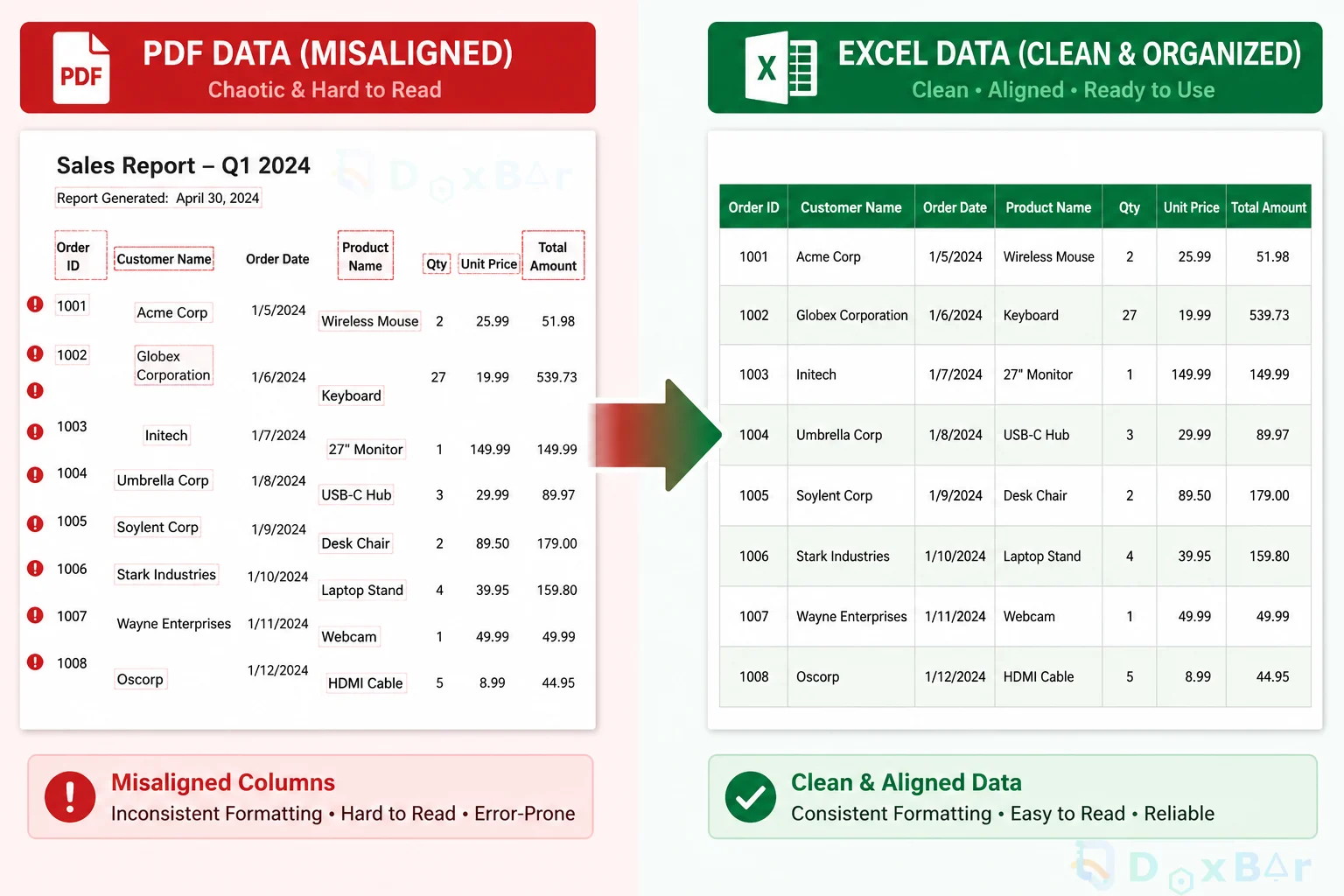
Tired of broken tables and garbled data? Learn why PDF to Excel conversions break formatting and discover practical workflows to extract clean data instantly.
Picture this: it is 4:45 PM on a Friday. You are packing up your things, looking forward to the weekend, when an email from your manager pops up. Attached is a massive, 50-page PDF financial report. The request is simple enough: "Hey, can you run a quick analysis on these numbers and send over a summary before you leave?"
You figure it will take five minutes. All you need to do is copy the data tables from the document and paste them directly into Microsoft Excel.
But the moment you hit paste, your heart sinks. The clean layout completely disintegrates. Single columns split across three random rows, financial numbers turn into unreadable text strings, and the neatly aligned borders disappear.
This exact scenario is a massive headache that accountants, data analysts, and freelancers face constantly. Instead of leaving on time, you end up facing a long, painful evening of retyping cells manually or fighting with Excel to align the margins. The irony is that PDFs are designed to look identical on any screen, but that exact visual rigidity makes a PDF to Excel conversion a structural nightmare.
To fix these broken tables without losing your sanity, we need to look under the hood and understand why this data shift happens—and how modern browser tools can solve it instantly.
The Root Causes of Broken Document Workflows
The real issue here isn't a broken file; it is a fundamental clash between two completely different technologies. PDFs and spreadsheets were built to serve opposite masters.
1. Visual Layout vs. The Cellular Grid
A PDF behaves exactly like a static digital printout. According to the structural guidelines managed by the ISO, a PDF tells your operating system precisely where to place a character using absolute X and Y positioning coordinates. It doesn't understand what a "row" or a "column" is; it just knows a number belongs exactly 3 inches from the left edge. Excel, however, relies entirely on dynamic formulas and relative structural grids.
2. The Nightmare of Formatting Loss
When you force a visual print layout into a grid of cells, the underlying formatting markers vanish. Multi-line headers get squeezed into a single box, long numbers wrap awkwardly, and trailing negative symbols (like 1500-) trick Excel into thinking the data is text rather than numbers.
3. Font and Device Mismatch
If a report uses a specific corporate font that isn't saved locally on your computer, your browser tries to guess and substitute it. Even a microscopic change in font width shifts character spacing, throwing off the alignment rules used by standard converters.
4. Heavy Desktop Software Bottlenecks
Older desktop applications require large installation files, continuous license updates, and immense system memory. When you just need to fix a document quickly on the fly, waiting for a heavy program to boot up stalls your productivity.
Educational Deep Dive: How Converters Process Data
Fixing a scrambled table gets much easier when you understand how a parsing engine attempts to read your file. Here is the typical transformation path:
Step 1: Input PDF Document (The Raw Material)
Everything starts with your uploaded file. At this point, the document is just a massive collection of raw text streams, absolute X/Y vector coordinates, and geometric line paths. The system sees individual elements scattered across a digital canvas rather than a structured database.
Step 2: Structural Layout Parsing (Reading Between the Lines)
Once the file is received, the parsing engine takes over. It groups tiny text snippets together based on their spatial proximity (how close they are to each other). By mapping intersecting lines and blank gaps, the software tries to figure out where one block of text ends and the next begins.
Step 3: OCR Engine (Decoding Scanned Images)
If your PDF is an image or a scanned document, standard text parsing won't work. This is where the Optical Character Recognition (OCR) engine steps in. It analyzes the flat pixel matrices, identifies visual glyphs (shapes of letters and numbers), and extracts them into actual editable digital characters.
Step 4: Grid Reconstruction (Building the Skeleton)
After extracting the text and characters, the converter starts building the table from scratch. It calculates the alignment to generate logical rows and columns, carefully placing each piece of data into a structured layout that spreadsheet software can understand.
Step 5: Final Spreadsheet Generation (The Output)
In the final stage, the reconstructed grid is compiled into a native spreadsheet file. The software maps the data into proper formats (ensuring numbers remain numbers and dates remain dates), exporting a perfectly clean, ready-to-use .xlsx file.
The Parsing Engine
When you drop a file into a conversion tool, the software calculates the horizontal gaps between text blocks. If two chunks of numbers have a significant blank space between them, the engine assumes they are separate columns. If the original document lacks explicit, high-contrast borders, the script has to make an educated guess—which often leads to misaligned rows.
The Role of OCR
If your file is a scanned document or a smartphone photo of an invoice, it contains zero digital text elements. It is just a flat collection of colored pixels. This is where Optical Character Recognition (OCR) comes in. Top-tier OCR engines, built on foundational open-source technology shared by companies like Google, analyze pixel shapes to recognize actual letters and digits, turning an image back into searchable, structured text.
Why Spreadsheets Twisted During Translation:
Merged Cells: Designers love merging cells for visual aesthetics. To a simple conversion program, a merged cell looks like a missing data point, causing every subsequent column on that row to shift left.
Currency Symbols and Commas: Commas used for thousands separators vary globally. An unoptimized tool can easily misinterpret a comma, splitting a single financial figure into two distinct cells.
What to Look for in a Modern Solution
You don't need to tolerate clunky local installations or inaccurate free tools. A modern file management system should fit right into your browser without adding friction. Keep these key pillars in mind:
Zero Local Footprint: Look for web-native platforms that run seamlessly in Chrome, Firefox, or Safari without requiring admin passwords or installations.
Privacy First: Ensure your files are safe. Choose platforms with explicit data deletion policies that wipe your files from their systems shortly after processing.
Layout Continuity: The engine should handle multi-page documents gracefully, keeping continuous data tables unified on a single sheet rather than splitting them awkwardly.
Batch Capabilities: Processing twenty separate expense reports one by one is an absolute time-waster. Your solution should handle multiple uploads simultaneously.
Comparing Document Extraction Approaches
Feature & Capability
Legacy Online Sites
Traditional Desktop Software
Modern Cloud Platforms (Doxbar)
Setup Friction
Low (But filled with pop-up ads)
High (Requires installs & updates)
None (Instant web browser access)
Table Alignment Accuracy
Poor (Frequent layout shifting)
Good (But uses heavy system RAM)
Excellent (Advanced spatial parsing)
Data Privacy & Security
Risky tracking cookies
High local security
Secure cloud paths with auto-wipe
Cross-Platform Mobility
Hit-or-miss on mobile
Locked to your primary computer
Universal (Desktop, phone, or tablet)
Step-by-Step Guide to Clean Data Extraction
Here is how you can use the web-native tools at Doxbar to pull pristine data out of an uncooperative document.
Step 1: Upload Your File
Open the workspace in your browser. Drag your target document directly into the drop zone, or upload it from your local storage drive.
Step 2: Choose Your Target Format
Select .xlsx as your desired spreadsheet output. The cloud infrastructure automatically spins up processing nodes tailored to layout reconstruction.
Step 3: Automated Conversion
Click convert. The back-end engine handles the heavy lifting—scanning text positions, measuring column gaps, running OCR if needed, and generating a clean table structure.
Step 4: Download the Spreadsheet
Once processing wraps up, click download to save the newly created Excel file straight to your local device.
Step 5: Verification Check
Open your file in Excel. Take a quick look at your main headers, line totals, and final columns. Everything is clean, perfectly aligned, and ready for your data formulas.
Pros & Cons of Web-Based File Processing
The Pros
Work From Anywhere: Whether you are using a Chromebook, an older work desktop, or your phone at an airport, your tools remain identical.
Saves System Power: Because the computationally heavy lifting happens on secure remote servers, your local computer won't freeze or lag.
No Learning Curve: The drag-and-drop mechanics mean you don't need technical training to handle complex data extractions.
The Cons
Needs an Internet Connection: Since it operates entirely via cloud nodes, you must have active web access to process documents.
Handwritten Margins: While printed tables convert with near-perfect accuracy, handwritten notes scribbled inside margins can still occasionally trip up an OCR engine.
Advanced Frequently Asked Questions
Why do characters turn into weird code symbols after conversion?
This points to an encoding error within the original document. If the person who created the PDF didn't embed standard Unicode maps, the conversion utility cannot map the visual shapes back into real text characters. Using an integrated hub like Doxbar solves this via extensive built-in font arrays.
Is it secure to upload sensitive financial files to an online converter?
It depends entirely on the platform's data retention policies. Many ad-supported free websites save your documents or track your data. Secure tools protect your information using encrypted connections (TLS) and automatically purge all files from their systems within a short time window.
My document has regular paragraphs mixed with tables. How will Excel handle it?
Advanced extraction engines can easily tell the difference between layout styles. They will isolate text paragraphs into broad rows that span the page, while maintaining tight, multi-column divisions for your actual data sets.
Why do some of my numerical columns turn into dates automatically?
This isn't an error caused by the converter; it is actually a default behavior inside Microsoft Excel. Excel sees a number string like 10-12 and assumes you mean October 12th. Changing the destination cell formatting to 'Text' inside Excel fixes this immediately.
Can I convert a password-protected PDF directly into Excel?
Yes, but you have to provide the correct encryption password during the upload step. Security barriers prevent any processing engine from reading or translating protected data without user authorization.
Why do some data rows get skipped during the extraction process?
Skipped rows usually happen when a document has incredibly faint gridlines or an inconsistent background. Ensuring high contrast in your source documents allows the parsing engine to map every row accurately.
What is the maximum file size I can process inside a browser?
While your desktop's memory limits local installations, advanced web tools distribute files across specialized cloud networks, meaning they can handle large, multi-page corporate performance reports effortlessly.
Why do numbers with currency symbols fail to calculate in my formulas?
If a converter drops a dollar sign ($) or euro symbol (€) directly into the cell text, Excel reads the entire box as a text string instead of a number value. High-quality extraction tools separate currency tags from numbers so your math formulas work right away.
Can I extract data from a flat photo of a receipt or invoice?
Absolutely. Integrated OCR engines analyze the pixel structures of images to recognize text and values, transferring those visual rows into editable spreadsheet cells.
How can I guarantee perfectly aligned columns every single time?
For the absolute best results, try to use source documents that have clean layouts and minimal decorative elements. Clear, open space between data blocks makes it incredibly easy for an engine to construct perfect column lines.
Technical Reliability & Data Ethics
Using cloud utilities requires absolute trust. Document security should never be left to chance. Modern document platforms maintain strict compliance protocols, utilizing end-to-end TLS encryption for all data in transit so your business records remain entirely under your control. Processing should always be ephemeral—your documents are processed, converted, and permanently wiped from existence.
Conclusion
Wrestling with broken tables and misaligned columns wastes valuable time. While the architectural differences between PDFs and Excel spreadsheets cause standard copy-and-paste commands to fail, you don't have to rebuild your files from scratch manually.
Choosing optimized web utilities allows you to bypass messy formatting issues entirely. Ready to simplify your document workflows? Experience clean, effortless data extraction with the suite of file tools available at Doxbar.