
Why Does My Excel Spreadsheet Print Incorrectly? (And How PDF Fixes It)
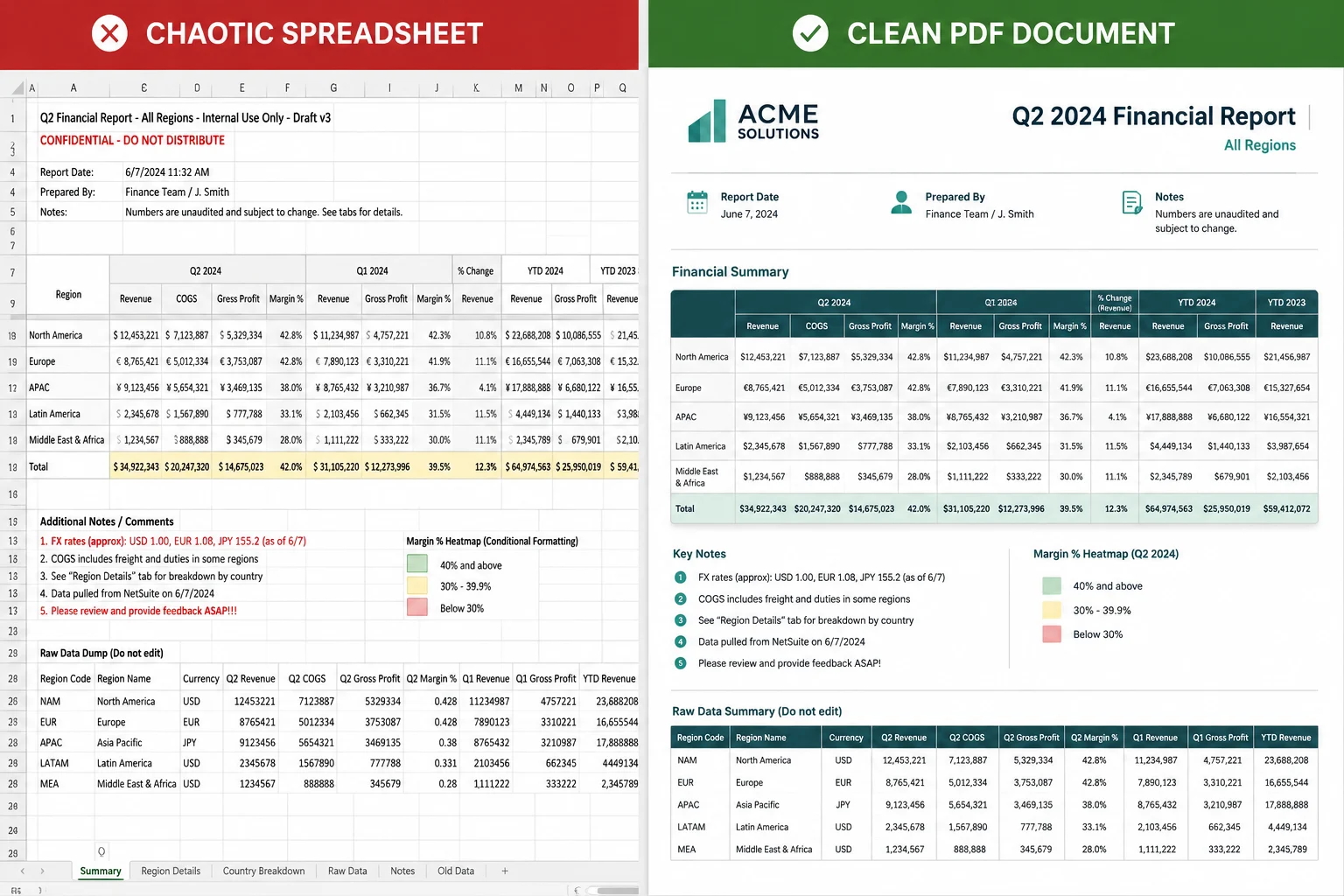
Fix broken Excel print layouts. Learn why spreadsheet formatting shatters on paper or different screens, and how converting XLSX to PDF keeps columns intact.
Introduction: The Monday Morning Panic
Imagine this: You’ve spent three days building a flawless, color-coded quarterly budget spreadsheet. The formulas are tight, the data formatting is crisp, and it looks beautiful on your 27-inch office monitor. Your manager calls an emergency meeting and asks you to print a quick copy or fire over a draft for their tablet.
You hit print or send over the .xlsx file, and everything falls apart.
Columns are chopped in half. Text strings are randomly replaced by ominous ### symbols. Columns Q and R have somehow migrated to their own completely blank second page. It looks messy, unprofessional, and like you didn't check your work.
Managing spreadsheets is hard enough without having to fight your printer or your recipient’s screen layout. This formatting shift happens to everyone, from finance veterans to small business owners. Thankfully, locking your layouts into place by converting your spreadsheets to a portable format is the easiest way to prevent these headaches. Modern browser tools like Doxbar make this transition happen in seconds, ensuring your data looks exactly as you intended.
Why Spreadsheets Break Across Devices and Printers
To understand why Microsoft Excel files behave so unpredictably outside of their native environment, we have to look under the hood. Word processors use fixed-width virtual pages; spreadsheets do not.
When you share or print a raw spreadsheet file, you frequently encounter a handful of recurring friction points:
The Infinite Canvas Problem: Excel sheets are designed as endless grids. They don't inherently care about physical paper dimensions like A4 or Letter size. When you ask a machine to partition that infinite space into distinct pages, things get messy fast.
Font and System Discrepancies: If your sheet uses a specific font family that isn't installed on your colleague's laptop or your office printer's internal memory, the system drops back to a default font. Because different fonts have slightly different character widths, a column that was perfectly wide enough on your PC suddenly chokes and clips the text.
Screen Aspect Ratio Shifts: Opening a massive data matrix on a desktop monitor is a completely different user experience than opening it on an iPad or smartphone. The spreadsheet app will automatically re-scale cells to fit the screen, forcing viewers to constantly scroll horizontally, which destroys readability.
Software Version Conflicts: Not everyone is running the same version of Microsoft 365. If a stakeholder opens your modern workbook in an older desktop version, an open-source alternative, or a generic mobile viewer, advanced data formatting and custom charts can easily warp or break.
The Technology Behind File Translation: Excel vs. PDF
Why does a standard document layout hold its ground while a spreadsheet falls to pieces? It comes down to how these file formats handle layout instructions.
An Excel file (.xlsx) is essentially a zipped package of XML data code. It tells the computer: "Put this value in cell B4, apply a light gray background tint, and calculate the sum." It relies heavily on the program opening it to decide exactly how that cell should look on screen or paper.
A PDF (Portable Document Format), originally developed by Adobe, handles layouts with a completely different philosophy. It acts like a digital snapshot. Instead of storing fluid cell rules, it maps out hard coordinates for text and vectors. It explicitly states: "Place a black, 12pt Arial letter 'A' exactly 4.5 centimeters from the left edge and 10 centimeters from the top edge of a fixed A4 sheet."
Why Grid Formatting Breaks During Web Conversion
When an online conversion engine processes a spreadsheet, it has to convert fluid grid instructions into these rigid layout coordinates.
If a conversion tool uses outdated rendering engines, it struggles to calculate things like wrapped text blocks, merged cells, or embedded charts. This results in cut-off sentences and misaligned gridlines. Well-designed web-native pipelines, on the other hand, accurately replicate the spreadsheet’s visual structure in your browser window before baking it permanently into a PDF container.
A Modern Approach to Spreadsheet Management
When choosing a solution to convert data sheets for sharing, look beyond basic file processing. A modern file workflow requires a balance of speed, formatting fidelity, and data privacy.
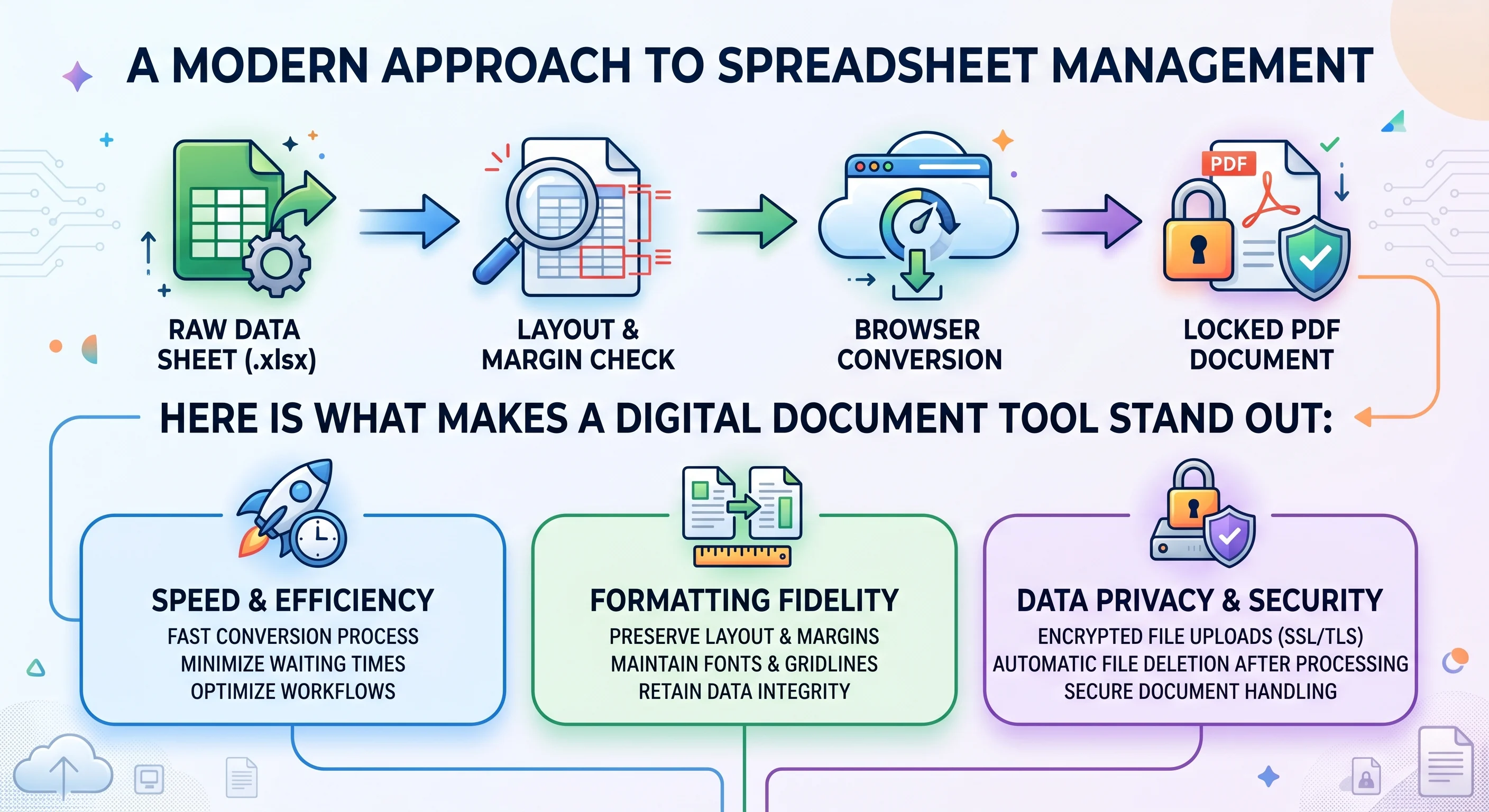
Here is what makes a digital document tool stand out:
Zero Local Footprint: Relying on heavy desktop software packages that require constant system updates is an unnecessary bottleneck. Modern workflows live in the browser, working uniformly whether you are on a Chromebook, MacBook, or Linux desktop.
Rigid Layout Preservation: The core task is guaranteeing that your margins, column boundaries, and cell fonts stay exactly as you designed them.
Data Isolation and Privacy: Spreadsheets regularly contain sensitive operational data, client contact lists, or internal financial metrics. Using unknown third-party web platforms that permanently store your uploads on hidden file servers is a major security risk. Secure platforms process your work instantly and wipe the operational slate clean immediately afterward.
Batch Utility: If you are closing out an end-of-month accounting cycle, processing twelve distinct store reports one by one is an inefficient use of time. Your tools should allow you to queue up multiple tasks simultaneously.
Document Workflows Compared
Feature / Capability
Legacy Online Web Tools
Traditional Desktop Apps
Modern Browser Workflows (Doxbar)
Processing Footprint
Low (but often ad-heavy)
High (requires installs/licenses)
Zero (Runs entirely via clean web)
Formatting Reliability
Unpredictable (broken charts)
High (within native app only)
High (retains precise grid structures)
Data Privacy Policy
Often vague or multi-day storage
Local (Safe, but siloed on one PC)
Secure (Instant processing, auto-wipe)
Cross-Platform Access
Yes
No (tied to licensed operating system)
Yes (Universal browser access)
Interface Complexity
Confusing layouts and popups
Complex menus and toolbars
Clean, direct, and distraction-free
Step-by-Step: How to Properly Prepare and Lock Your Sheets
Converting your spreadsheet file isn't just about dragging and dropping; a little prep work prevents layout surprises. Follow this quick checklist to ensure your document renders perfectly:
Step 1: Clean Up Your Sheet Workspace
Open your workbook and delete any temporary draft calculations, hidden stray data points, or notes stuck out in column Z. These empty rows or old notes can fool the engine into rendering extra, completely blank pages.
Step 2: Set Your Target Print Area
If you only need your executive board to see a specific summary table rather than the entire raw data log, highlight that specific table inside Excel or Google Sheets. Go to your page setup menu and click Set Print Area. This establishes a definitive boundary for the conversion engine.
Step 3: Run Your File Through a Dedicated Web Pipeline
Head over to an optimized tool like Doxbar. Select the spreadsheet tool, then drag your .xlsx workbook directly into the active browser drop zone.
Step 4: Convert and Verify
Click convert, let the engine process the grid geometry, and download your newly minted PDF file. Open the document to verify that the column layout flows perfectly across the pages before hitting send.
The Reality Check: Balanced Pros & Cons
Let’s be entirely honest: while converting your spreadsheets to PDF solves layout headaches, it changes how people interact with your data. Weighing these trade-offs helps you decide when to switch formats.
The Good
Bulletproof Visual Continuity: What you see on your screen is precisely what lands in your client’s inbox, regardless of their phone or OS version.
Eliminates Human Errors: Locking formulas down as static visual elements prevents unauthorized users or clients from accidentally clicking a cell and wiping out an active data formula.
Broad Digital Support: PDF formats display cleanly within any modern browser interface, eliminating the need for recipients to install dedicated spreadsheet software.
The Not-So-Good
Loss of Computational Interactivity: Once baked into a PDF document, your active cells become static text blocks. Recipients cannot toggle filters or sort numbers on the fly.
Harder to Edit Text: If a typo slips past your initial review, you can't simply double-click the cell to change it. You have to update your source spreadsheet and re-run the file conversion pipeline.
Deep Dive FAQ: Spreadsheet Layouts & Conversion
1. Why does my text get cut off in a column when converting to PDF?
This happens because cells calculate text wrapping based on screen resolution and font sizes. If a column is tightly fitted around text in Excel, subtle differences in font rendering engines during conversion can push text past cell boundaries. Giving your columns a tiny bit of extra breathing room before converting usually resolves this issue.
2. Can I convert multiple spreadsheet sheets at the same time?
Yes. Most engines convert all active worksheets inside a workbook file by default, mapping each separate sheet to its own dedicated page or set of pages within the final document output.
3. How can I fit a massive horizontal sheet onto a standard PDF page?
Set your page orientation settings to Landscape instead of Portrait prior to running the conversion. Alternatively, use the "Fit to Page Wide" option in your sheet's print setup menu.
4. Why did my formulas stop working after I created a PDF?
PDF is a static layout display standard, not a computational grid engine. The math formulas aren't broken—they have simply completed their calculations and printed the static results to the page.
5. What are the characters "###" appearing in my document cells?
This is a standard formatting alert. It means the cell column width is physically too narrow to display the numeric value or date string inside it. Making the source column wider fixes this instantly.
6. Are my internal financial spreadsheets safe when using online tools?
That depends entirely on where you upload your work. Many ad-supported conversion sites log files for extended periods. Security-conscious platforms like Doxbar process your data dynamically and wipe your files from memory immediately after download, keeping your sensitive data secure.
7. Does converting a file alter my source spreadsheet?
No. Web tools read a duplicate copy of your file. Your source workbook remains untouched on your hard drive.
8. Why do my grid lines disappear in the final document?
Grid lines are often turned off for printing by default. If you want them to show up in your final document, make sure the "View/Print Gridlines" toggle checkbox is checked in your spreadsheet program's page layout menu.
9. Will my background colors change during the conversion process?
Color accuracy is highly preserved during modern digital file transformations. However, if your display settings use a custom color profile, colors may appear slightly different on various device screens.
10. Can I convert legacy .xls files from old versions of Office?
Yes. Modern parsing software supports both legacy binary workbooks (.xls) and modern open XML formats (.xlsx).
11. Can I restrict people from editing my converted spreadsheet document?
Yes, restricting edits is one of the main benefits of the format. To add an extra layer of protection, you can apply a master password to your file to restrict copying or printing.
12. Why did my chart shift position in the final output?
Floating charts sit on a separate visual layer above the grid. If columns shift due to font substitutions, the chart anchor points may move accordingly. Keeping charts clearly separated from text blocks minimizes this behavior.
13. How do I convert spreadsheets on a mobile device?
Open your web browser app, navigate to your file conversion tool, select your file from your phone's storage, and run the conversion tool. It requires no desktop software to work.
14. What happens to hidden rows and columns during conversion?
Rows and columns that are explicitly marked as "Hidden" in your source workbook do not render visually and are excluded from your final output file.
15. How does OCR technology affect spreadsheet data extraction?
Optical Character Recognition (OCR) lets computers read text embedded inside flat image scans. If your spreadsheet was scanned as an image, running an OCR pass transforms those static pixels back into searchable numbers and letters.
16. Why are large sections of my document completely blank?
This usually happens because a rogue spacebar stroke or an old cell comment is lingering far down on the edge of your worksheet. Clearing all rows below your core data table prevents these blank pages.
17. Does file size increase when I save a spreadsheet as a document?
Usually, yes. While spreadsheet code is mostly plain text, documents embed font files and vector shapes, making them slightly larger. However, the size difference is usually minimal unless your sheet has heavy graphics.
18. Can I convert files from Google Sheets or LibreOffice?
Yes. Any program that lets you export your data as an .xlsx file works perfectly with modern web conversion workflows.
19. How do I maintain crisp image logos in my sheet header?
Always use high-resolution, uncompressed file formats like PNG or SVG for logos instead of low-quality JPEGs. This keeps branding crisp when converted to vector-based document formats.
20. Why do my page breaks look strange on different computer monitors?
Page breaks rely heavily on your system's default printer settings. Setting your page breaks manually within your spreadsheet app before uploading your file ensures consistent pagination.
21. Can text hyperlinks still be clicked in a converted file?
Yes. Modern translation software retains active web URLs, allowing users to click hyperlinks directly from the converted document.
22. What causes text strings to overlap inside cells?
Overlapping text occurs when a font is replaced with a wider one that ignores your cell's boundary rules. Stick to universal web fonts like Arial or Calibri to avoid layout bugs.
23. How do I combine multiple spreadsheets into a single file?
Combine your individual data sheets into a single workbook file before uploading, or run them through a document merging utility after conversion is complete.
24. Can I reverse the process and turn a PDF back into an Excel sheet?
Yes, you can run a reverse file translation. However, reconstructing cell formulas from a static layout is difficult, so it's always best to keep your source file safe.
25. Why do some numbers format with strange symbols?
If currency symbols or regional punctuation look off, check that your spreadsheet’s regional language settings match your system layout before exporting.
Technical Security and Best Practices
When handling operational business records, treating security as an afterthought is a serious risk. Uploading internal financial audits or employee rosters to insecure platforms can lead to data exposure.
A secure web pipeline should feel like a vault. Always ensure the tools you use use encrypted HTTPS connections for file transfers. For peace of mind, choose tools with automated system policies that immediately wipe your files from temporary storage once your session ends. A clean, modern file workflow should get the job done efficiently without leaving a digital trail behind.
Conclusion: Clean Data, Zero Friction
Managing complex data is challenging enough without worrying about broken layouts. Converting messy spreadsheets into polished, cross-platform PDF files ensures your columns stay aligned, your text remains legible, and your numbers look professional on any screen or paper size.
If you are tired of dealing with distorted charts, cut-off tables, and frustrating print layouts, try a cleaner approach to file management. Drop your latest project file into the secure tool at Doxbar to convert your documents instantly, keeping your layouts secure and professional.